Open Settings → Integrations (Super Admin only). Everything sent to tenants goes out under your identity: your WhatsApp number, your email, your payment account.
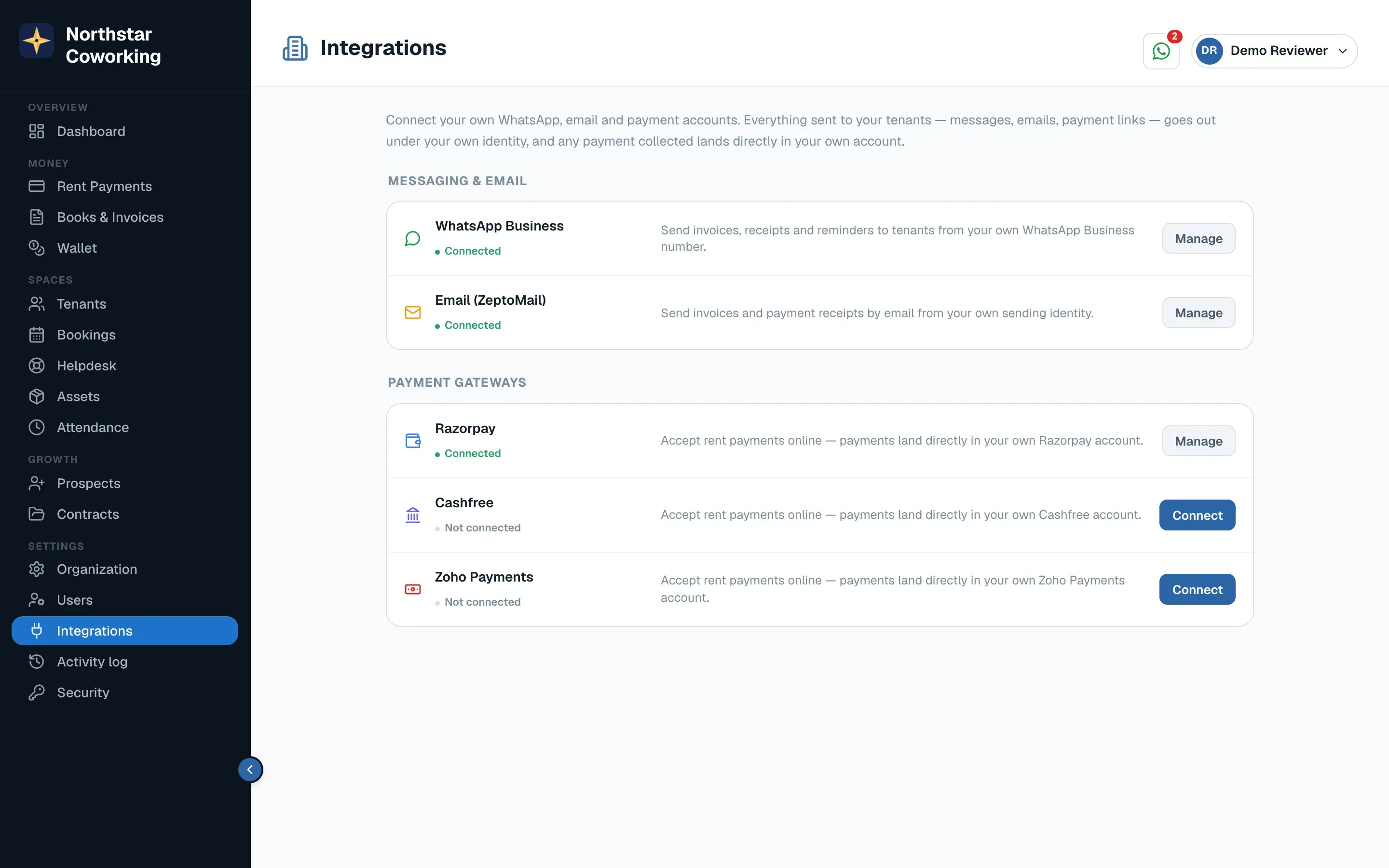
- Click Connect under WhatsApp and sign in with the Facebook account that manages your business.
- Pick or create your WhatsApp Business number. A number already used in the WhatsApp app on a phone cannot be used here; most spaces take a new SIM for this.
- Finish Meta's verification. Until Meta approves the number, messages are limited.
- The status turns to Connected. Invoices, receipts and reminders now go out on WhatsApp, with email as the fallback.
Payment gateway
- Choose Razorpay, Cashfree or Zoho Payments and paste the keys from that gateway's dashboard.
- Money goes straight to your account. When a tenant pays through the link, the invoice is marked paid and a receipt is sent, with no action from you.
If WhatsApp shows blocked or limited: Meta has restricted the number. Invoices still go out by email. Appeal in Meta Business Support; the app links you there.
Related guides
Still stuck? WhatsApp us or write to info@coworkingos.in. Tell us the tenant or screen and we'll sort it with you.