Open Settings → Organization → Mail → Domains. Only a Super Admin can do this.
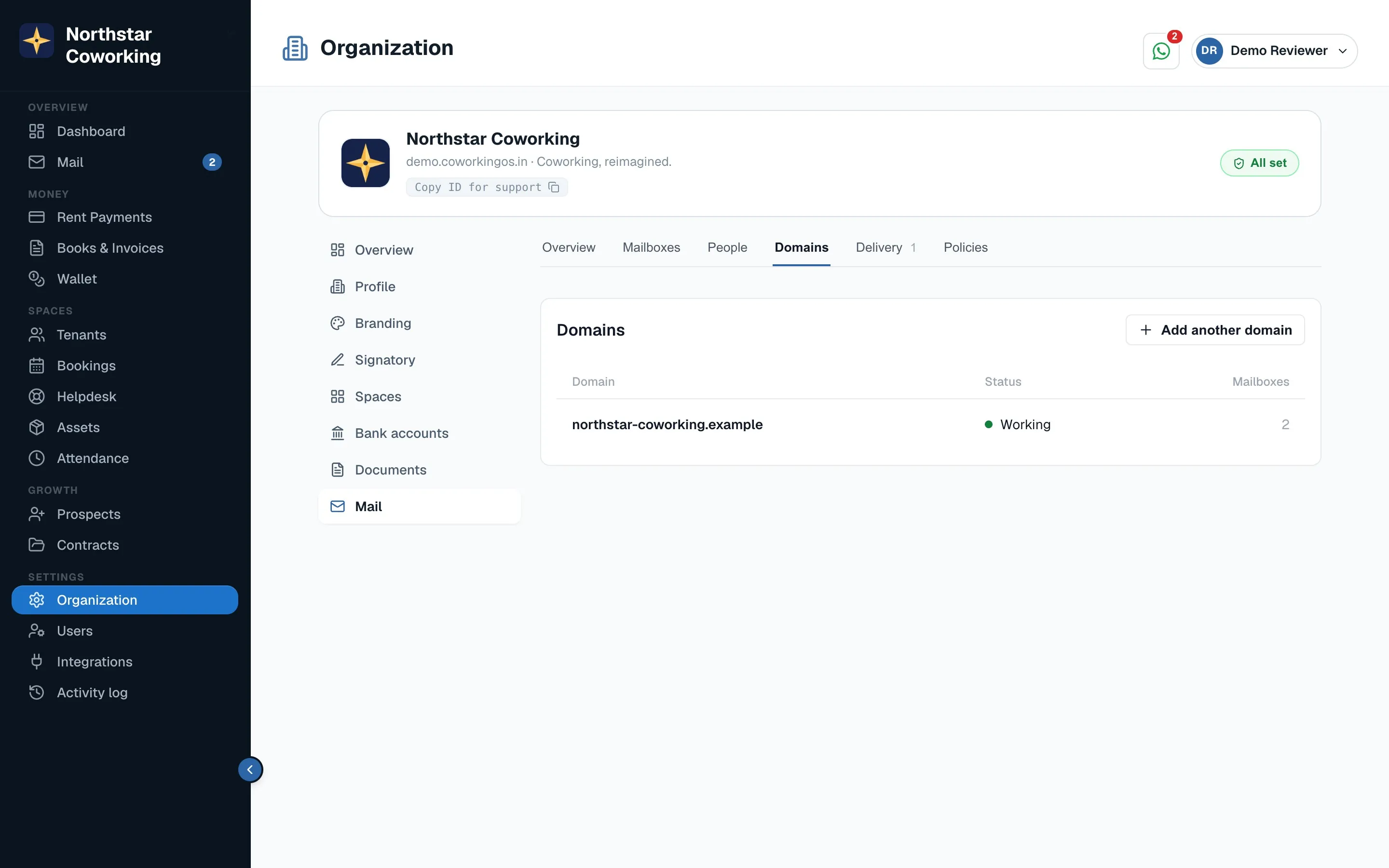
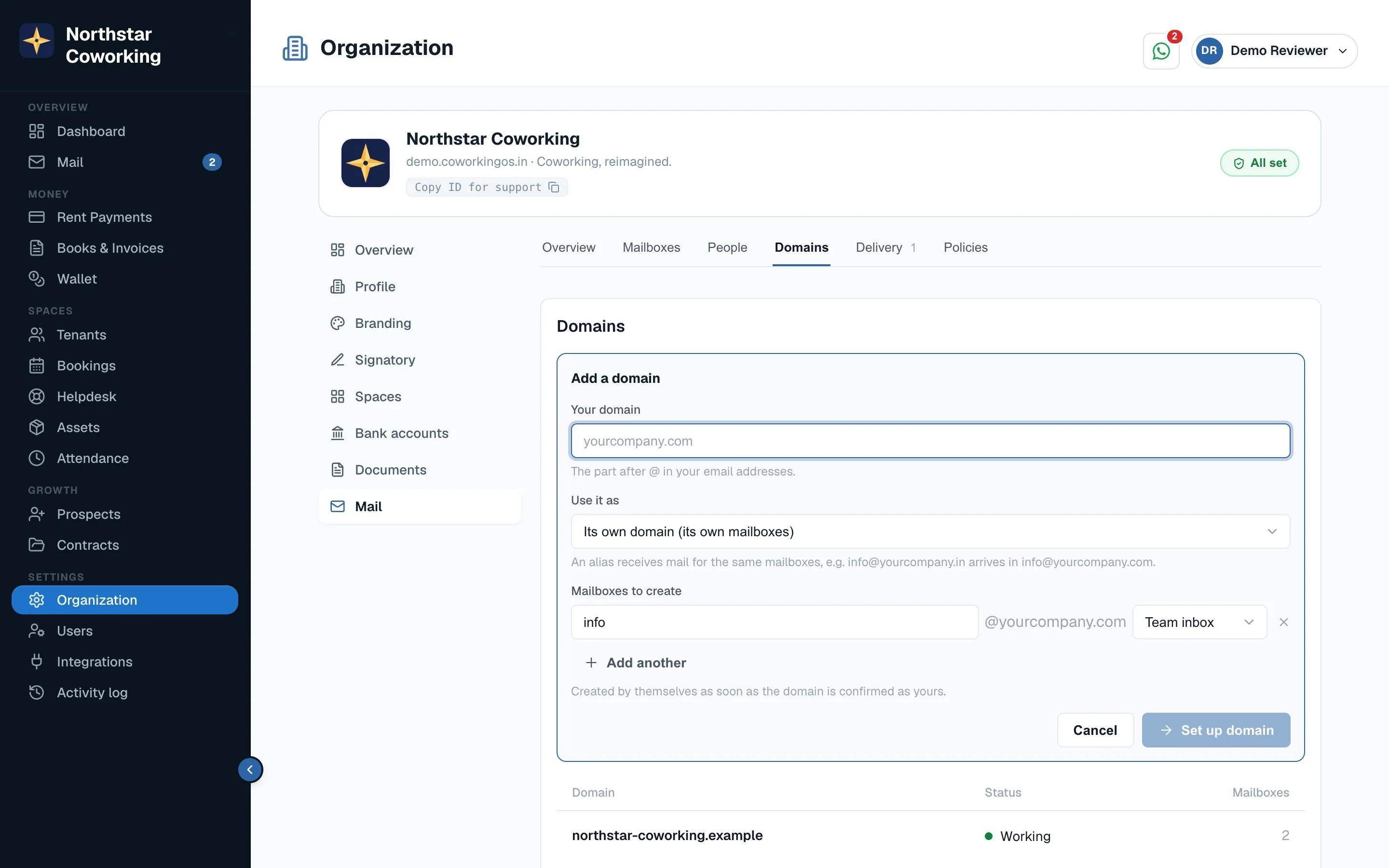
- Click Add another domain and type your domain, for example yourspace.com. The screen shows where its DNS is edited today and where its email goes today.
- List the mailboxes you want (info@, bookings@, your own name).
- Choose Move email now or Keep it there and import first. With the second choice your current email keeps working until you're ready.
- Pick how to add the DNS records: Do it for me (Hostinger, Cloudflare or GoDaddy: paste an API token from that account, see every change, apply; the token is used for that request only and never stored) or Add by hand (the records are listed with copy buttons, named the way your DNS screen expects them).
- Watch the live checklist tick each record off; it rechecks every minute by itself. Mailboxes you asked for are created the moment the domain is verified.
Afterwards
- A disclaimer can be added to every outgoing email on the domain (plain text, optional HTML).
- DMARC protects your name against fake senders. Start in monitor mode; the weekly summary tells you when it's safe to step up to quarantine and then reject.
- A domain alias (yourspace.in beside yourspace.com) delivers to the same mailboxes.
GoDaddy opens its API only to larger accounts; if 'Do it for me' is refused there, add the records by hand. Buying or renewing a domain stays with your registrar.
Related guides
Your Mail settings: signature, out of office, rules, import →Mailboxes, shared inboxes and who sees what →
Still stuck? WhatsApp us or write to info@coworkingos.in. Tell us the tenant or screen and we'll sort it with you.