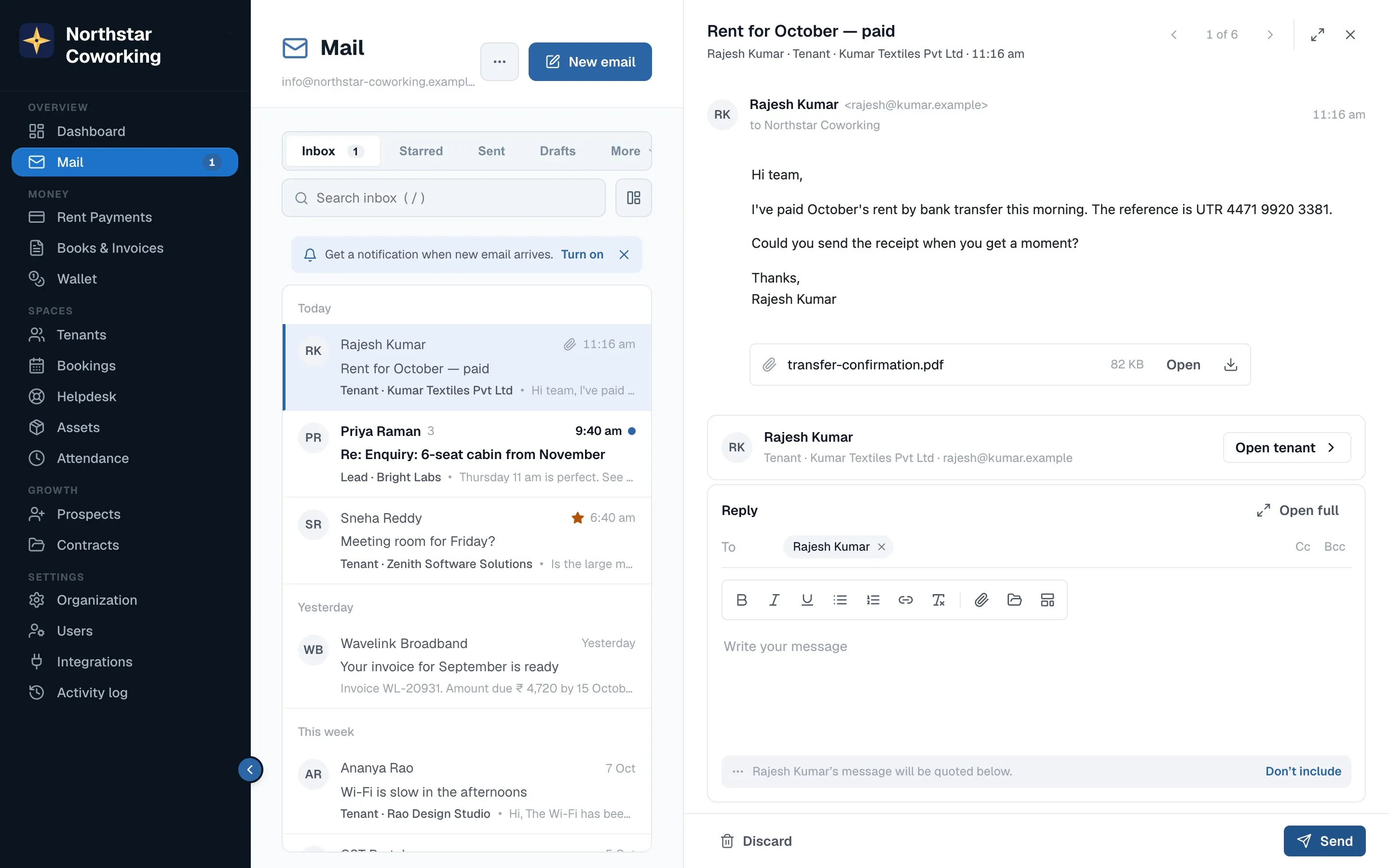
Reply or forward
- With an email open, click Reply (r), Reply all (a) or Forward (⇧F).
- The reply box opens under the conversation with the recipient filled in and your signature added.
- Click Send (or ⌘ Enter). The reply appears in the conversation as the newest message. If Undo send is on, you have ten seconds to take it back.
- Discard deletes the draft, with Undo in the toast.
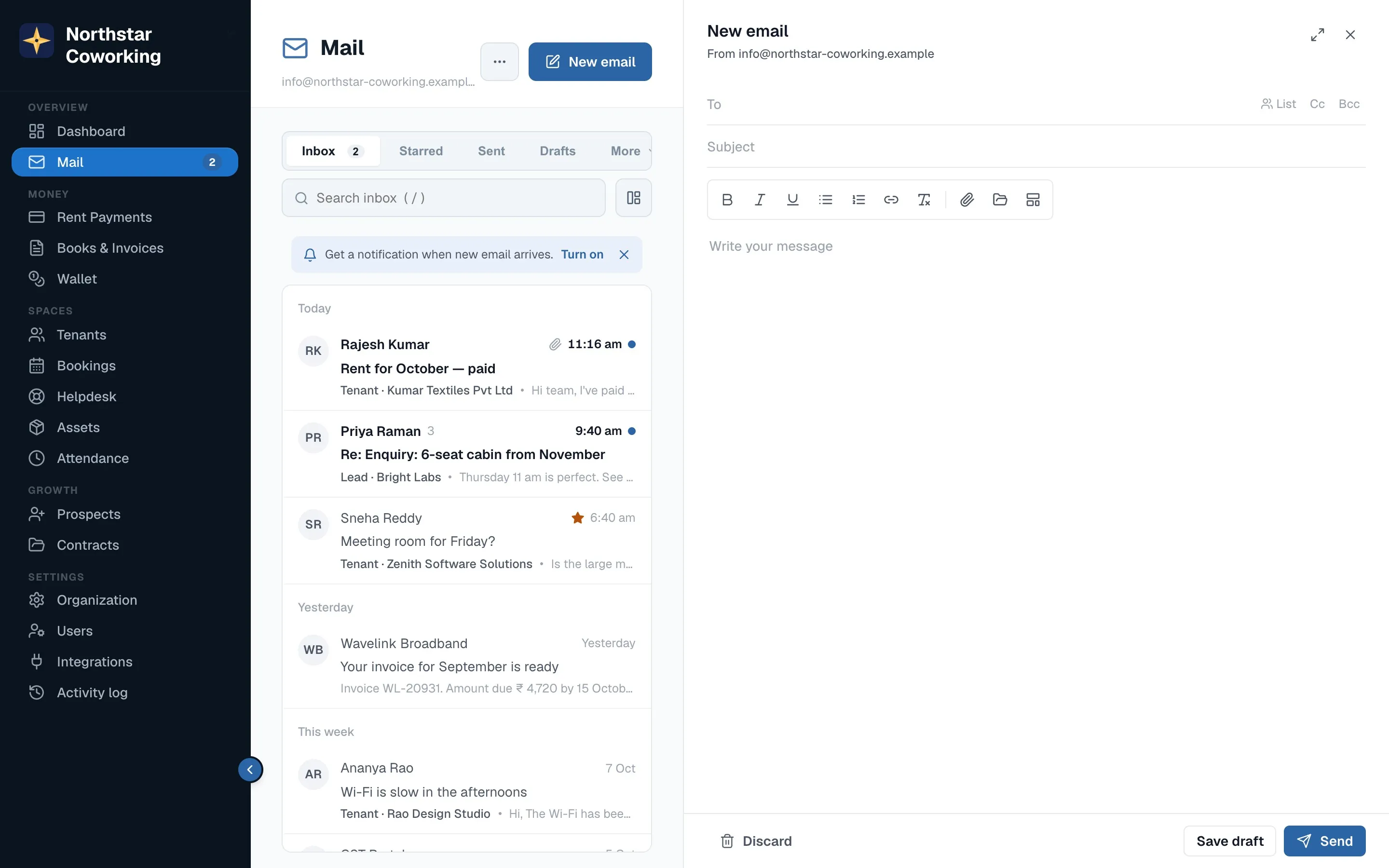
A new email
- Click New email (c). The New email panel opens.
- Type the first letters of a name in To: tenants, leads, vendors and people you've written to before are suggested, with their chip.
- Write the subject and message. Attach with the clip or drag a file onto the panel. Very large files are sent as a download link.
- Send, or Save draft to finish later (Drafts folder). Drafts also save themselves while you type.
Templates: saved replies (rent reminder, booking confirmation, welcome) fill in the tenant's name, cabin, amount due and month. Admins manage the templates under Organization → Mail → Policies → Signature & templates.
Related guides
Reading email and moving between messages →Your Mail settings: signature, out of office, rules, import →
Still stuck? WhatsApp us or write to info@coworkingos.in. Tell us the tenant or screen and we'll sort it with you.