Open Settings → Organization → Mail → Mailboxes.
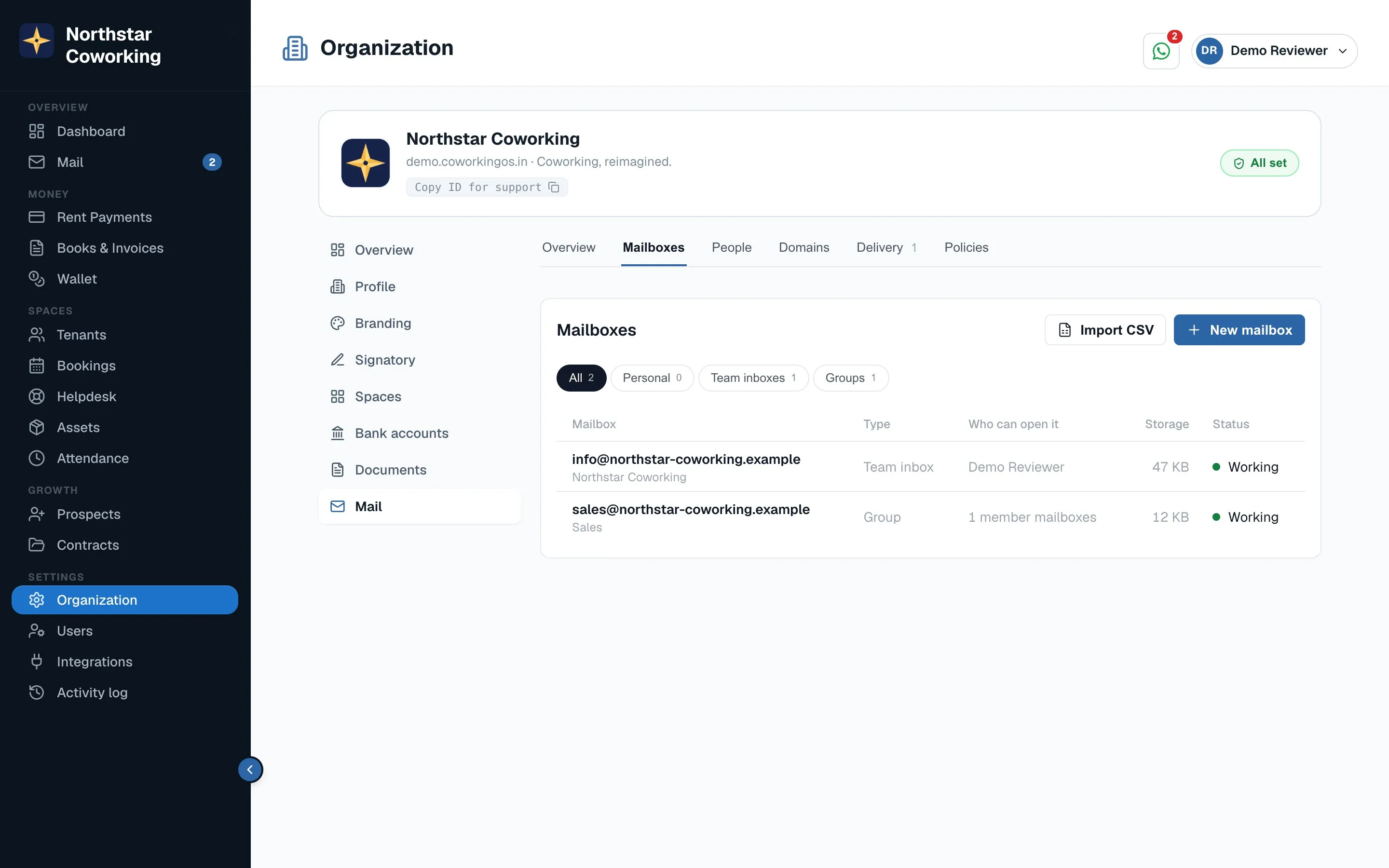
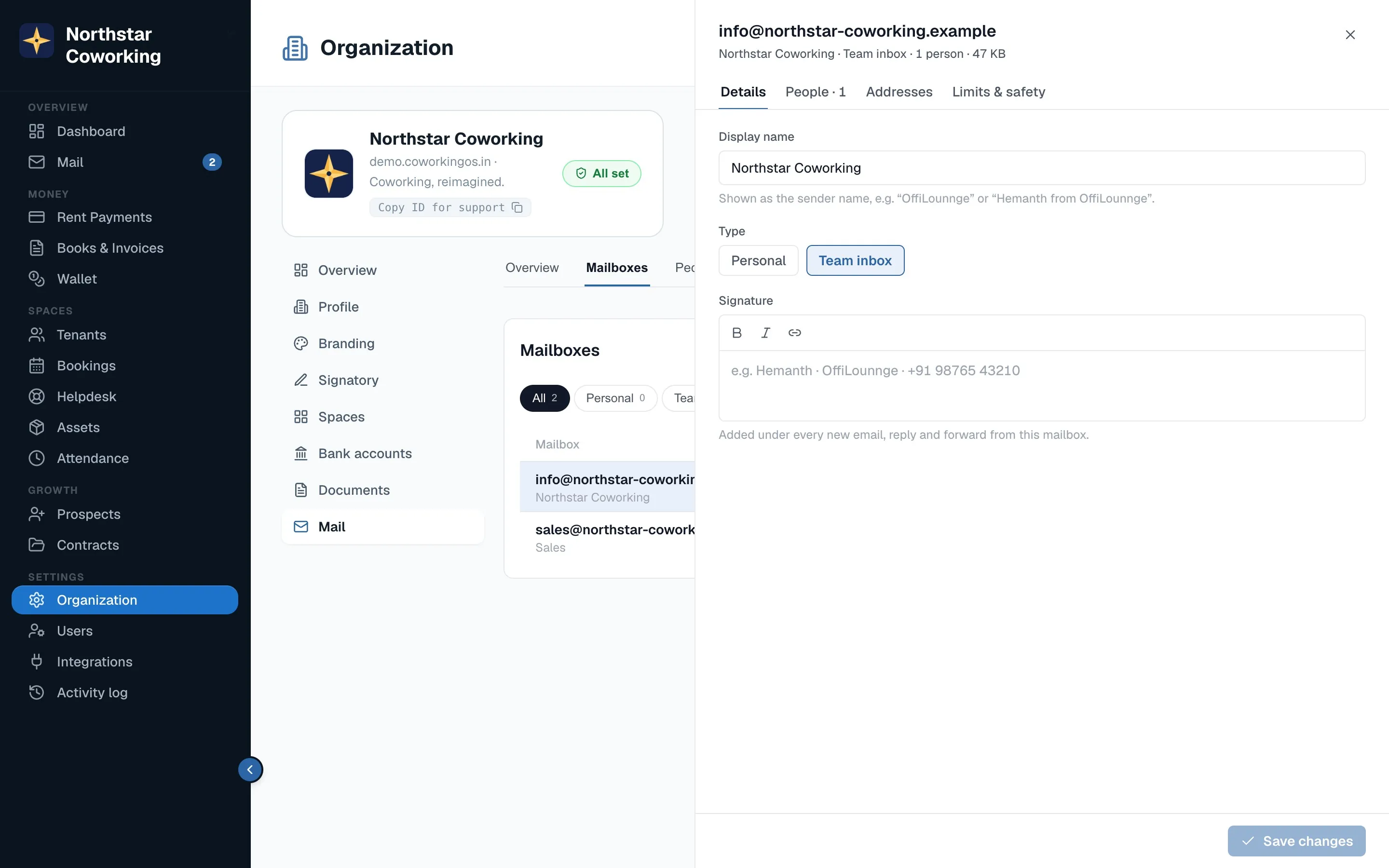
- Click New mailbox. Choose the type: Personal (one person), Team inbox (several people share it, like info@) or Group (a copy goes to each member's own mailbox, like sales@).
- Enter the address and display name; the signature template can be set here too.
- Click a row to open its panel: Details, People (who can open it: Read only, Read & send, or Send on behalf), Addresses (extra aliases, forwarding, catch-all), Limits (storage and sending), Activity.
- Save. Changes apply within seconds; the panel shows 'Applying…' then 'Done'.
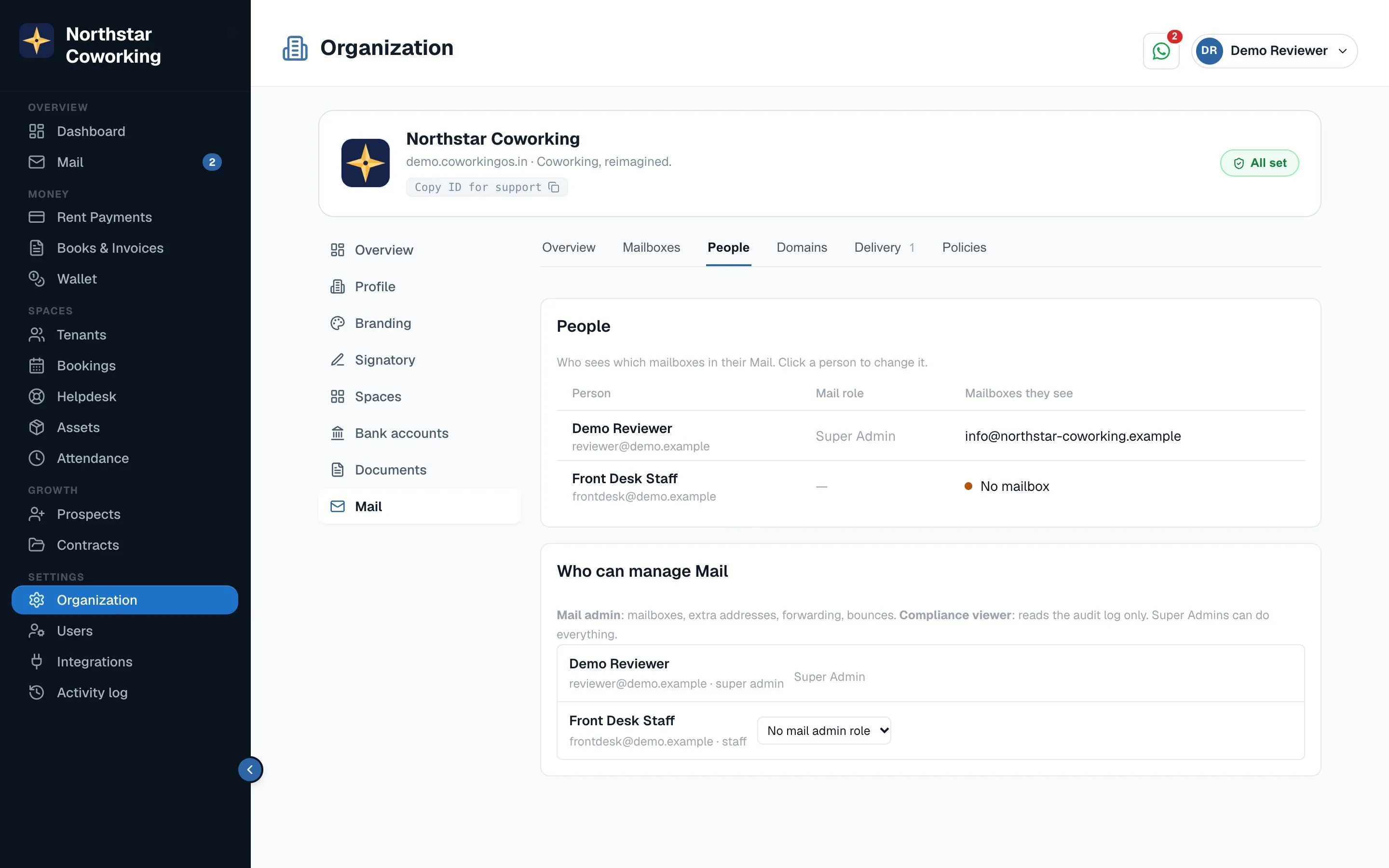
People
The People tab shows each team member with the mailboxes they see and whether two-step sign-in is on. Open a person to tick the mailboxes they may use. 'Who can manage Mail' lives here too: a Mail admin can run mailboxes and groups without touching security; a Compliance viewer can only read the audit log and run compliance searches.
Good to know
- Import CSV creates many mailboxes at once, with a preview and per-row errors.
- When someone leaves, Hand over their mailbox to another person or turn it into a shared one; it's logged and the leaver is told if still active.
- Suspend stops sign-in and receiving at once; Delete waits 30 days and can be cancelled; a final export can be downloaded first.
- No admin can read another person's personal mailbox. Compliance search is the only route, and it is logged.
Groups can be moderated: mail to the group waits for approval before it goes to members. Choose who may write to a group: everyone, your organisation, members only, or moderated.
Related guides
Adding your domain to Coworking OS Mail →Delivery: did my email reach them? →Security, compliance and reports (Policies) →
Still stuck? WhatsApp us or write to info@coworkingos.in. Tell us the tenant or screen and we'll sort it with you.