The Gmail app on Android and iPhone can hold your Coworking OS mailbox beside your Gmail. Gmail on the web (gmail.com in a browser) can no longer add other accounts, so use the app. You need an app password, and your admin must allow mail apps first.
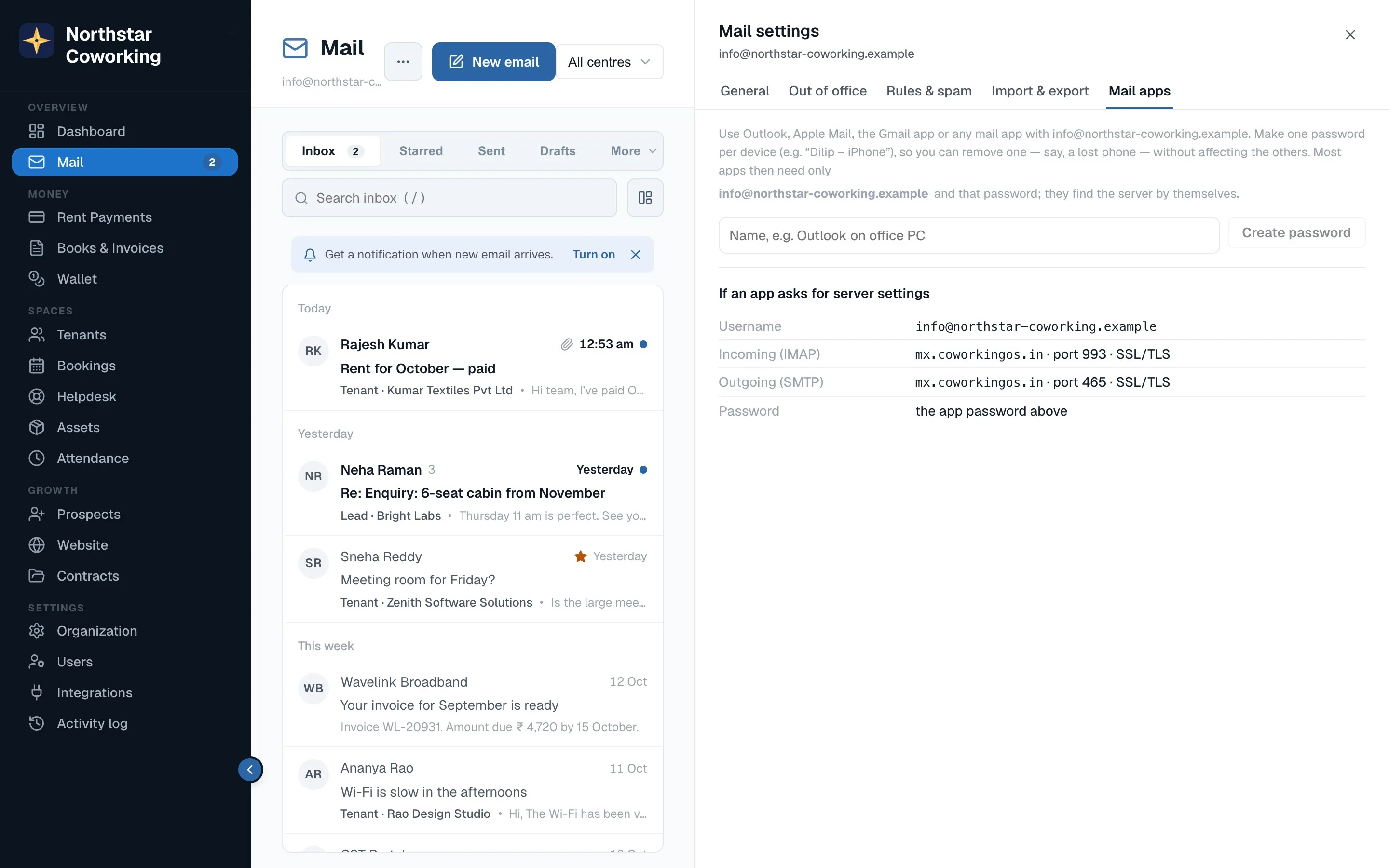
- On your computer, open Mail → ⋯ More → Mail settings → Mail apps, name the device ('Rahul – Android'), click Create password and copy it. It is shown once.
- In the Gmail app, tap your profile picture → Add another account → Other.
- Enter your full Coworking OS email address and tap Next; choose Personal (IMAP).
- Password: the app password.
- Incoming server: mx.coworkingos.in, port 993, security SSL/TLS. Username: your full address.
- Outgoing server: mx.coworkingos.in, port 465, SSL/TLS, the same username and password.
- Give the account a name and finish. Your inbox appears in a minute or two.
Mail sent from a mail app goes straight out; it skips Coworking OS's own sending checks, templates and the tenant chip. For replies with an invoice attached, Coworking OS Mail in the browser is still the quickest.
Related guides
Mail on your phone →Coworking OS Mail on iPhone, iPad and Mac (Apple Mail) →Coworking OS Mail in Outlook and Thunderbird →
Still stuck? WhatsApp us or write to info@coworkingos.in. Tell us the tenant or screen and we'll sort it with you.