Create an app password first: Mail → ⋯ More → Mail settings → Mail apps, name the computer, Create password, copy it. One per device, at most 10 per mailbox, removable any time (each one is listed with a Remove link). Your admin must have allowed mail apps.
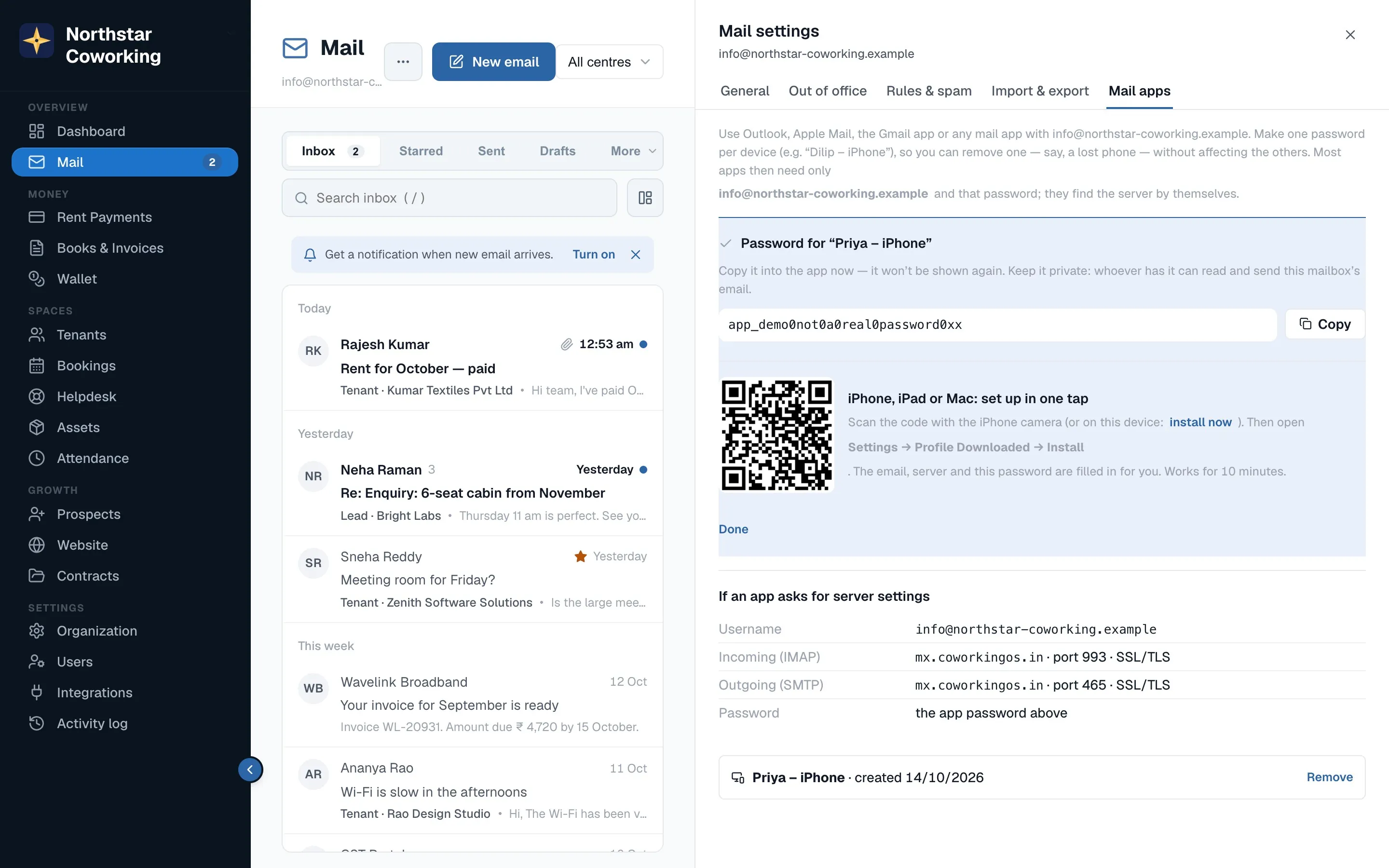
Thunderbird
File → New → Existing Mail Account. Enter your name, your full address and the app password. Thunderbird finds mx.coworkingos.in and the ports itself, with no DNS changes needed. Click Done.
Outlook
- File → Add Account (or Settings → Accounts → Add account in new Outlook). Enter your full address.
- If your admin has added the optional records (Organization → Mail → Domains → Mail apps set themselves up), Outlook asks only for the app password and fills in the servers.
- Otherwise choose IMAP and enter: incoming mx.coworkingos.in, port 993, SSL/TLS; outgoing mx.coworkingos.in, port 465, SSL/TLS; username your full address; password the app password. Outgoing uses the same sign-in as incoming.
For admins
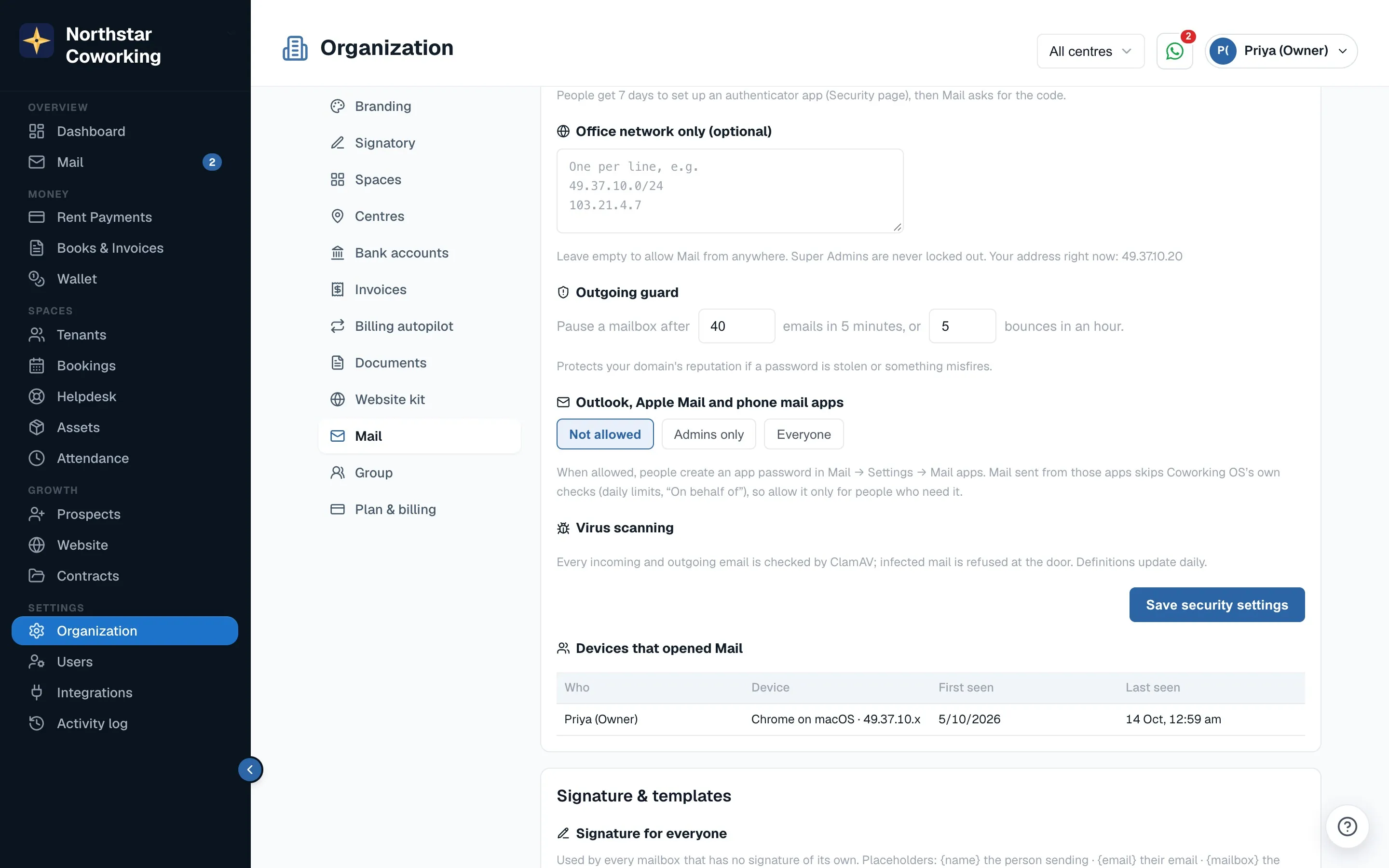
- Allow mail apps under Organization → Mail → Policies → Security → Outlook, Apple Mail and phone mail apps: Not allowed (the default), Admins only or Everyone, then Save security settings.
- Mail sent from those apps skips Coworking OS's own checks (daily limits, 'On behalf of'), so allow it only for people who need it.
- Under Domains, each domain has Mail apps set themselves up (optional) with three SRV records to add at your DNS provider; press Check now after adding them. Thunderbird and the iPhone/Mac one-tap file already work without them.
- Every app password created or removed is in the Mail audit log.
Related guides
Adding your domain to Coworking OS Mail →Security, compliance and reports (Policies) →Coworking OS Mail on iPhone, iPad and Mac (Apple Mail) →Coworking OS Mail in the Gmail app →
Still stuck? WhatsApp us or write to info@coworkingos.in. Tell us the tenant or screen and we'll sort it with you.