Most spaces pay AMCs, annual maintenance contracts, for the ACs, generator, lift or CCTV. Assets now keeps each contract: what it covers, when it ends, how many visits are left this year and what you have paid. Reminders come before a service is due and before a contract ends.
Open Assets under SPACES on a computer. Contracts and the Upcoming view are on the computer; the phone app's Assets screen does not show them yet. Super Admins and Staff add and change contracts; Admin viewers can look. Only a Super Admin can delete a contract or a payment. Staff limited to some centres see only their centres.
Add a contract
- Press Add contract at the top of Assets.
- Give it a Name such as Generator AMC, pick the Vendor and add the Contract number if there is one.
- Set Starts, Ends, the Value (₹) for the whole term and how it is Paid: one payment, monthly, quarterly, half-yearly or yearly.
- Enter Visits a year if the contract includes a number of visits, and Remind days before it ends (30 unless you change it).
- Tick the assets it covers under Assets it covers. A contract belongs to one centre, so once you tick an asset, assets at other centres are greyed out.
- If the contract renews by itself unless you cancel, tick that box. Attach the signed Contract PDF (up to 8 MB) if you have it, then press Add contract.
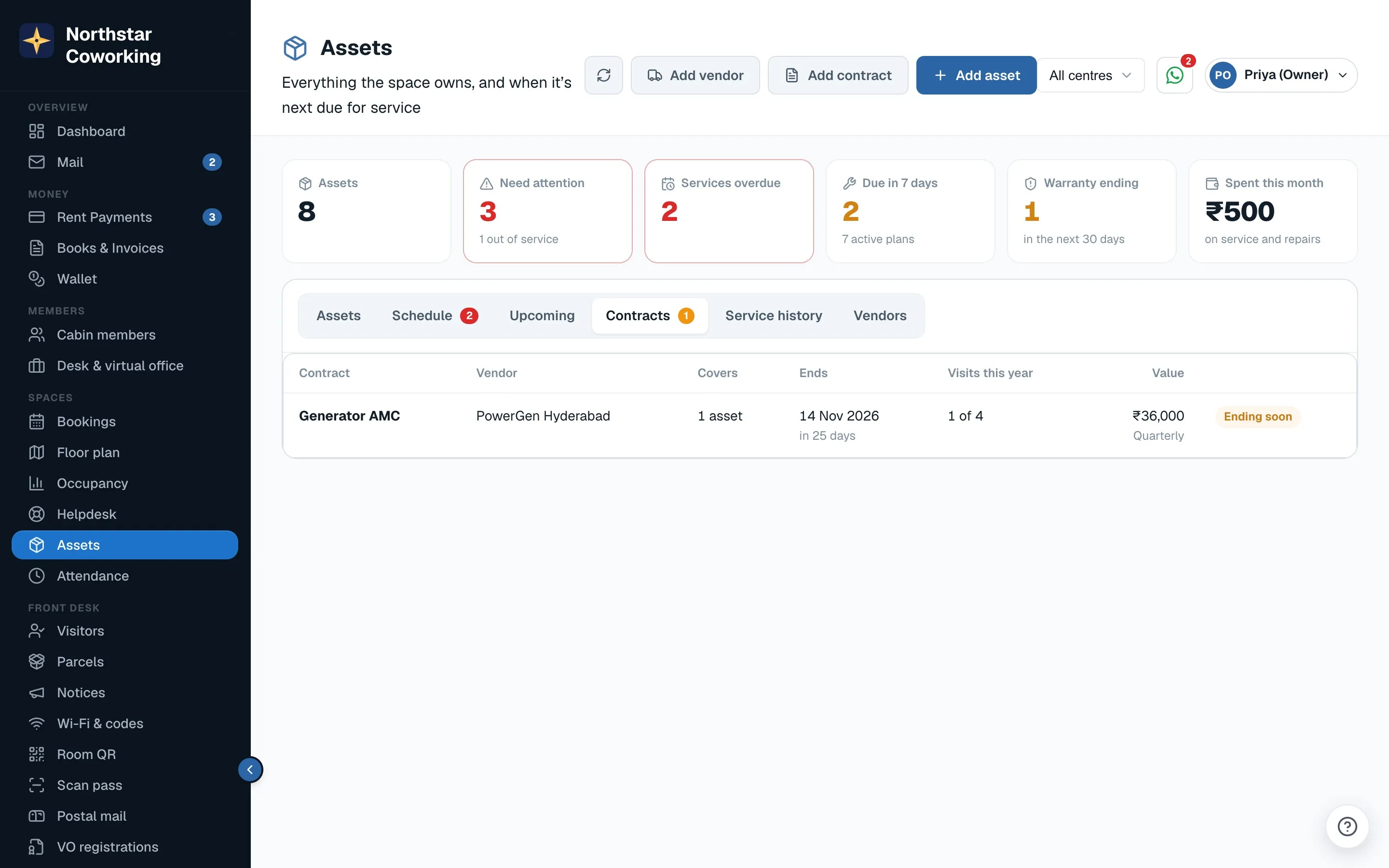
Visits, payments and renewal
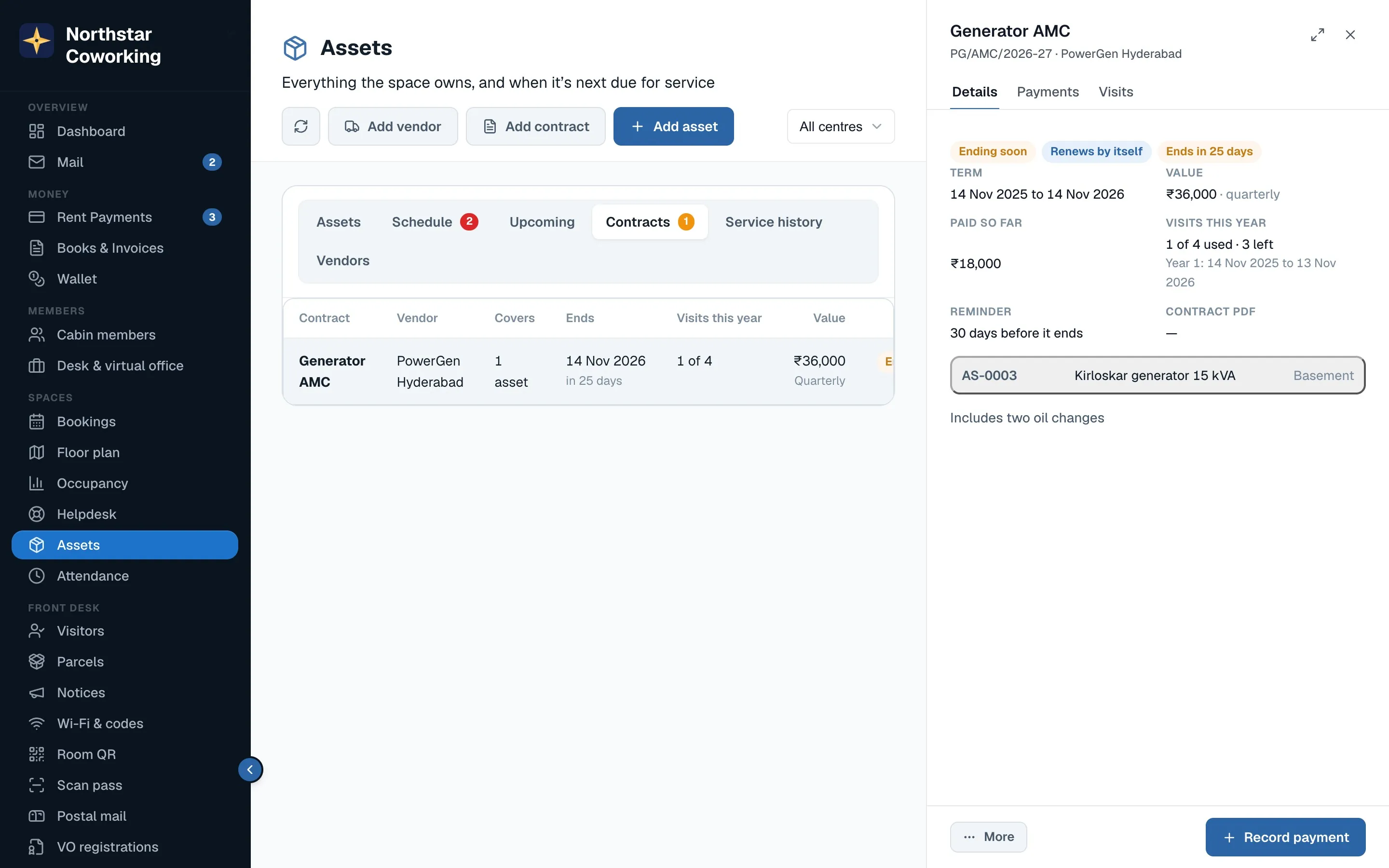
- Visits this year counts services recorded under the contract in the current contract year, which runs from the start date, not from January. When you record a service on a covered asset, the form asks Under an AMC? and picks the contract if there is only one. Going over the limit is shown, not blocked.
- Record payment saves an AMC payment with its date. Leave Add this to Books → Expenses (Maintenance) ticked and it becomes an expense at the contract's centre. The Payments tab lists them.
- Each contract shows as Starts later, Active, Ending soon (inside its reminder window), Expired or Renewed.
- More → Renew for the next term makes the next term of the same length with the same assets, vendor and value, and marks the old one renewed. Nothing is renewed without you pressing it, even when the contract renews by itself.
Reminders
- Service plans: each plan on an asset now has Remind days before, from 0 to 90 (7 unless you change it).
- Contracts: Remind days before it ends, from 0 to 365.
- Both go into the team's morning push on the phone app, This morning, which already covers overdue complaints and services. One push per space per day, and each reminder is sent once for each due date, so it is not repeated every morning.
- Vendor emails: open a vendor and tick Email them a reminder before a scheduled visit (the vendor needs an email address). When a plan's visit enters its reminder window, the vendor gets one email that day listing every visit due, asking them to confirm a time. It goes from your space's own email sender, or the Coworking OS address if none is connected. No WhatsApp messages are sent.
The Upcoming view
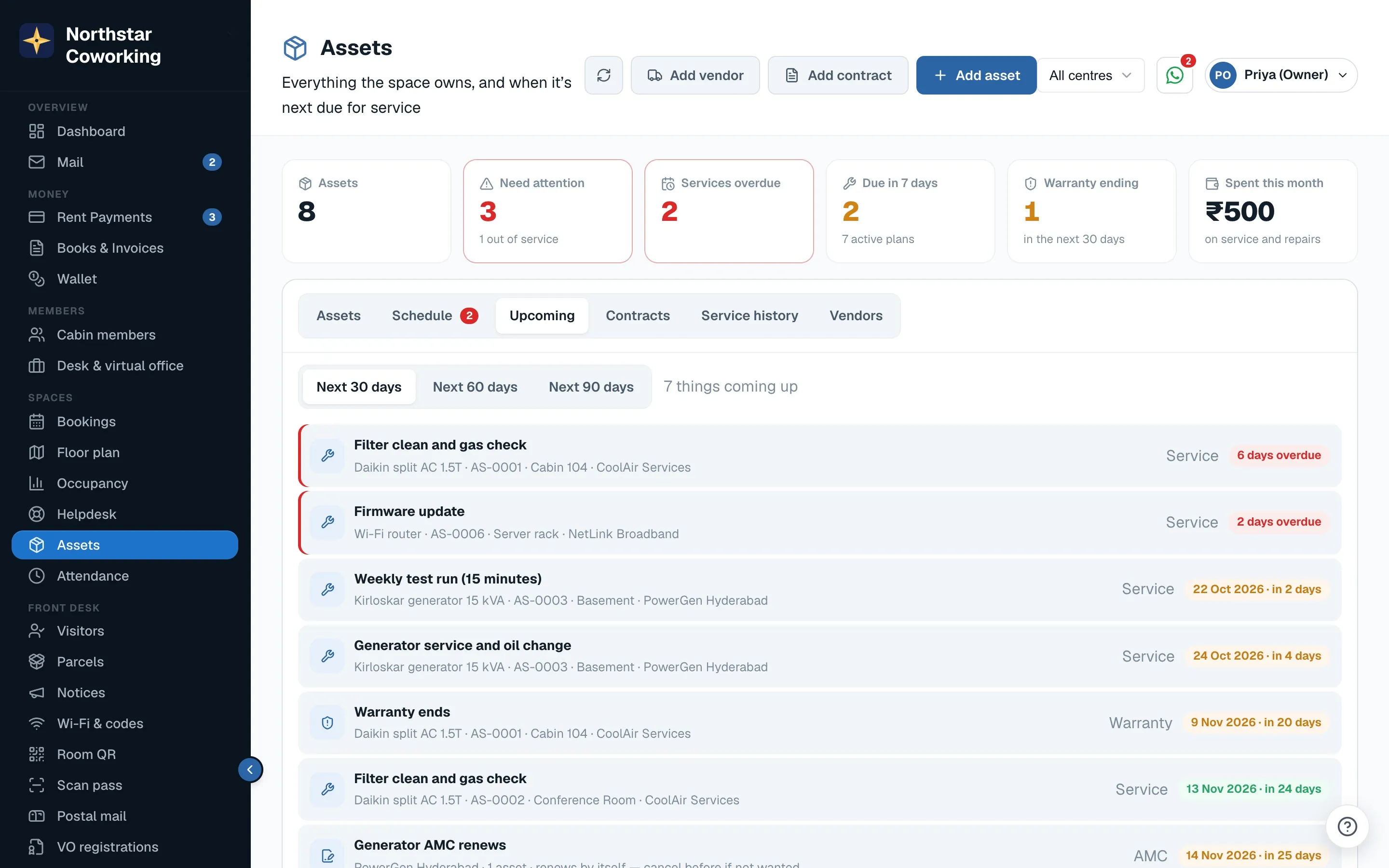
The Upcoming tab shows the Next 30 days, Next 60 days or Next 90 days, grouped by centre: services due (overdue ones first, in red), warranties ending, and AMCs ending or renewing. Click a row to open the asset or contract. At the bottom, AMC spend per year adds up recorded AMC payments by calendar year and centre.
Related guides
Still stuck? WhatsApp us or write to info@coworkingos.in. Tell us the member or screen and we'll sort it with you.