A virtual-office member pays for an address, not a desk. What they care about is their post being handled and the paperwork for registering a GST number or a company at your address. Both now live in the app instead of WhatsApp and a drawer.
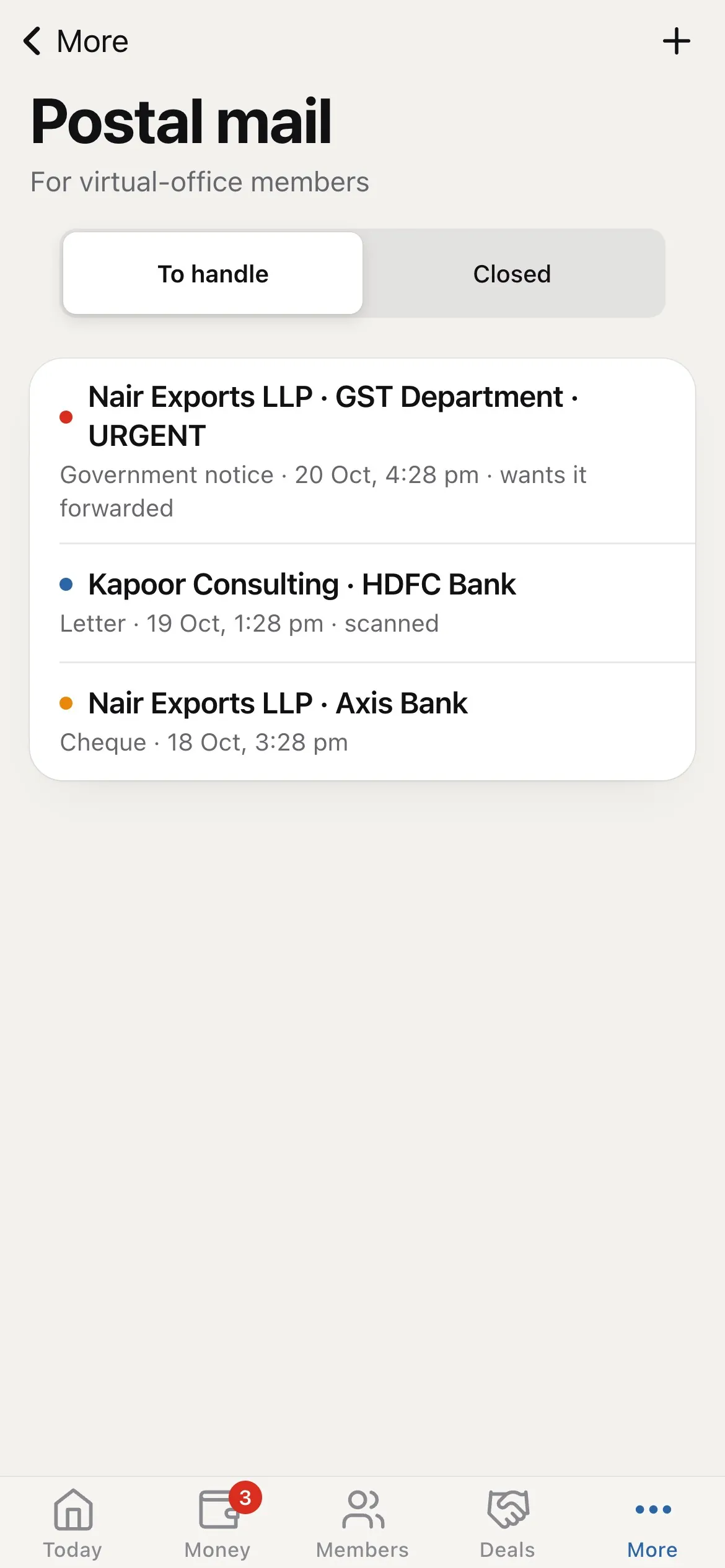
These screens show only for spaces that offer a virtual office. On a computer they are two tabs in Front desk, Postal mail and VO registrations, also listed under FRONT DESK in the left menu. On the phone, open More → Postal mail. Registrations are done on a computer; the phone says so.
Super Admins and Staff make changes. Admin viewers can look. Guest viewers see neither screen, because they hold company names, senders, scans and GSTINs. Staff limited to some centres see only the members and post of their centres.
Log a letter
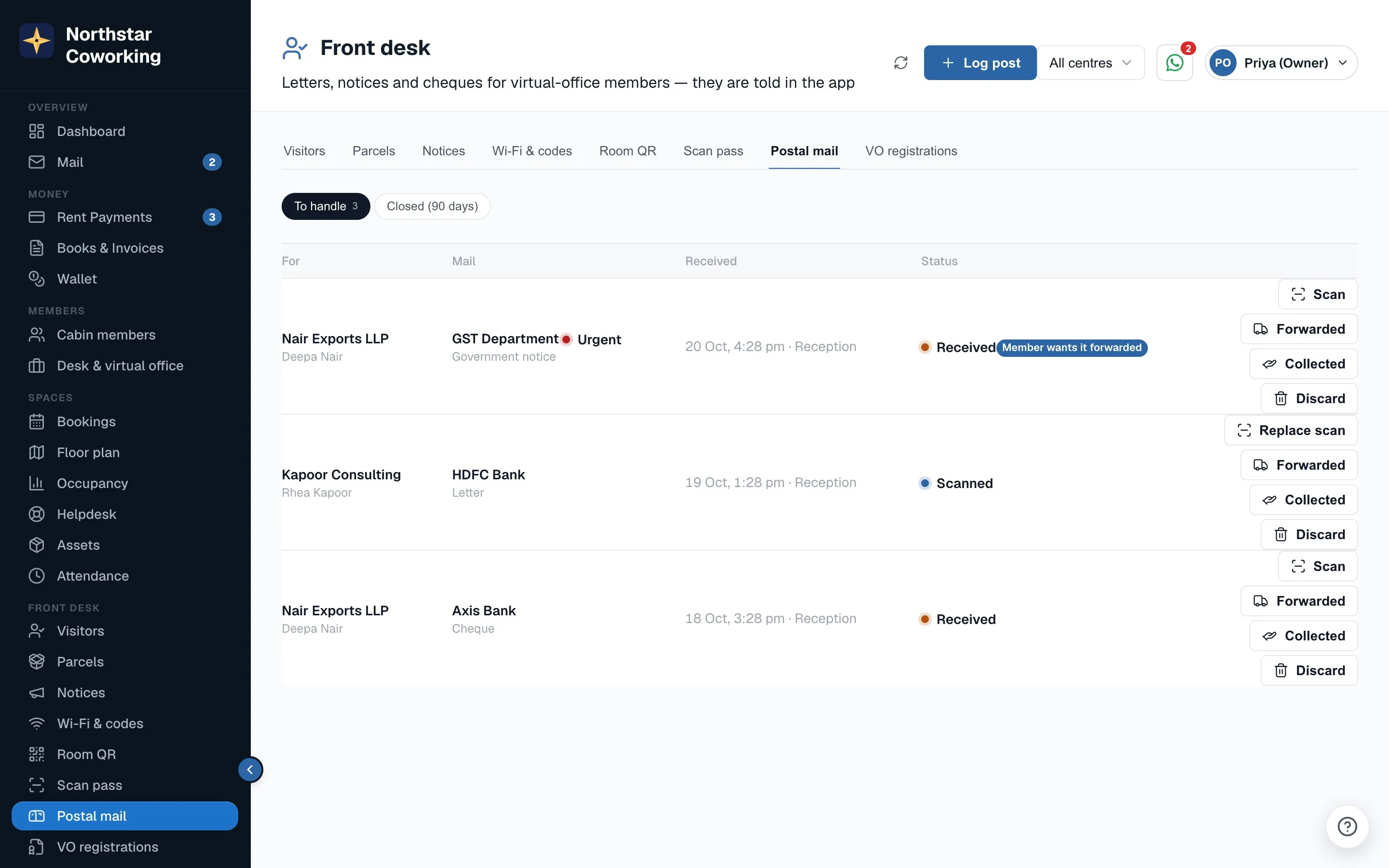
- Press Log post.
- Under For, choose the virtual-office member. Pick the Type: Letter, Government notice, Cheque or Parcel.
- Fill in From, for example GST Department or HDFC Bank, and a Note if useful.
- Add a Photo of the envelope if you like, then press Log post.
- The member is told by a push to the member app and an email from your space's own email sender. If neither reaches them, the app says so, and you should tell them yourself.
- A Government notice is always marked Urgent, shown first in the list, and the member is told it is urgent. Notices from GST, Income Tax or the company registrar usually have a deadline.
- For a Cheque, the app reminds you to put it in the safe. Nothing about money is recorded here.
Scan, then close it
- If the member has asked for a scan, press Scan on the row and choose a PDF or photo of the contents. The member is told again, and can read it in the app. Replace scan swaps it.
- Do the physical step, then press Forwarded, Collected or Discard. A closed item cannot change again; it moves to Closed (90 days) with who closed it and when.
If the member has asked for something, the row shows Member wants it forwarded with the address they gave, or Member will collect. These are requests; your team still does the work and closes the item.
Registration details and the NOC
VO registrations lists every virtual-office member with what they are Registered for, their GSTIN and the Documents given. Press Start for a new one, or Open.
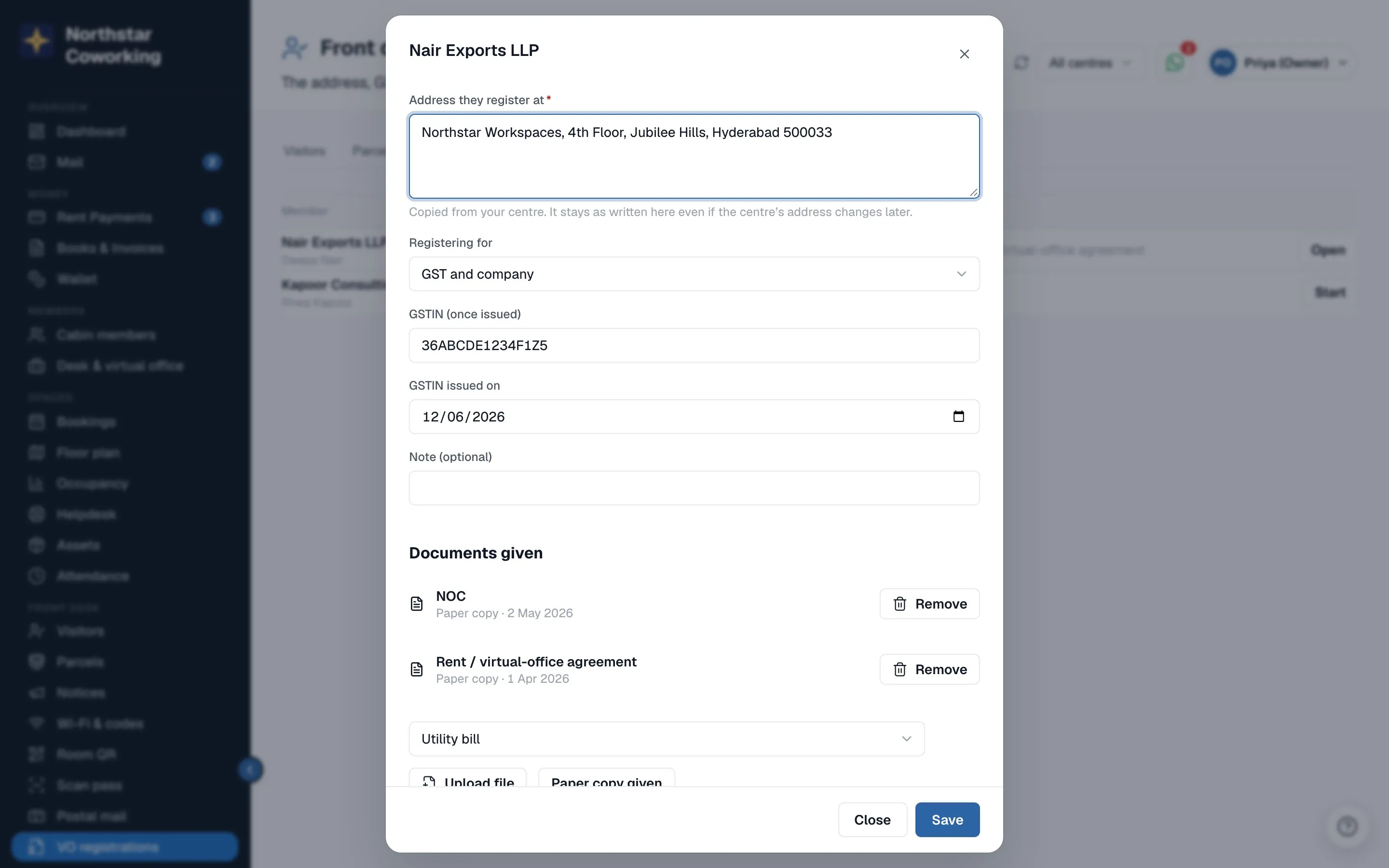
- Address they register at is copied from the member's centre. It stays as written even if the centre's address changes later, and you can edit it.
- Registering for: GST, Company registration, or GST and company. Add the GSTIN (once issued) and the date. The app checks only that it has the shape of a GSTIN.
- Under Documents given, pick a type (NOC, Utility bill, Rent / virtual-office agreement or Other), then Upload file (a PDF or photo, up to 10 MB) or Paper copy given to record a paper copy with today's date. Save the registration first.
- Make NOC writes a no-objection letter for a virtual office at that address from the record and adds it to the list. It is a letter from your space and is not sent for e-signature.
What the member sees
A virtual-office member gets My mail in the member app, under Account, and as a quick action on Home. Each item shows its status, the scan and the envelope photo. On anything still open they can tap Forward it to me (with an address, or the one you have) or I'll collect. Below the post they see Your registration: the address, what it is registered for, the GSTIN, and the documents to download.
Related guides
Still stuck? WhatsApp us or write to info@coworkingos.in. Tell us the member or screen and we'll sort it with you.