Members stay longer when the space feels like a community and not just a desk. The Community page gives you the tools for it: Events members RSVP to, Perks from partners nearby, a member Board and an opt-in Directory. This guide covers events and perks. The board and the directory have their own guide: The member board and the opt-in directory.
On the desktop the left menu has a COMMUNITY group with Events, Perks, Board and Directory; they open as tabs of one page titled Community. On the phone app it is More → Community. Super Admins and Staff create and edit. Admin viewers can read everything. A guest viewer sees events and perks only.
Events
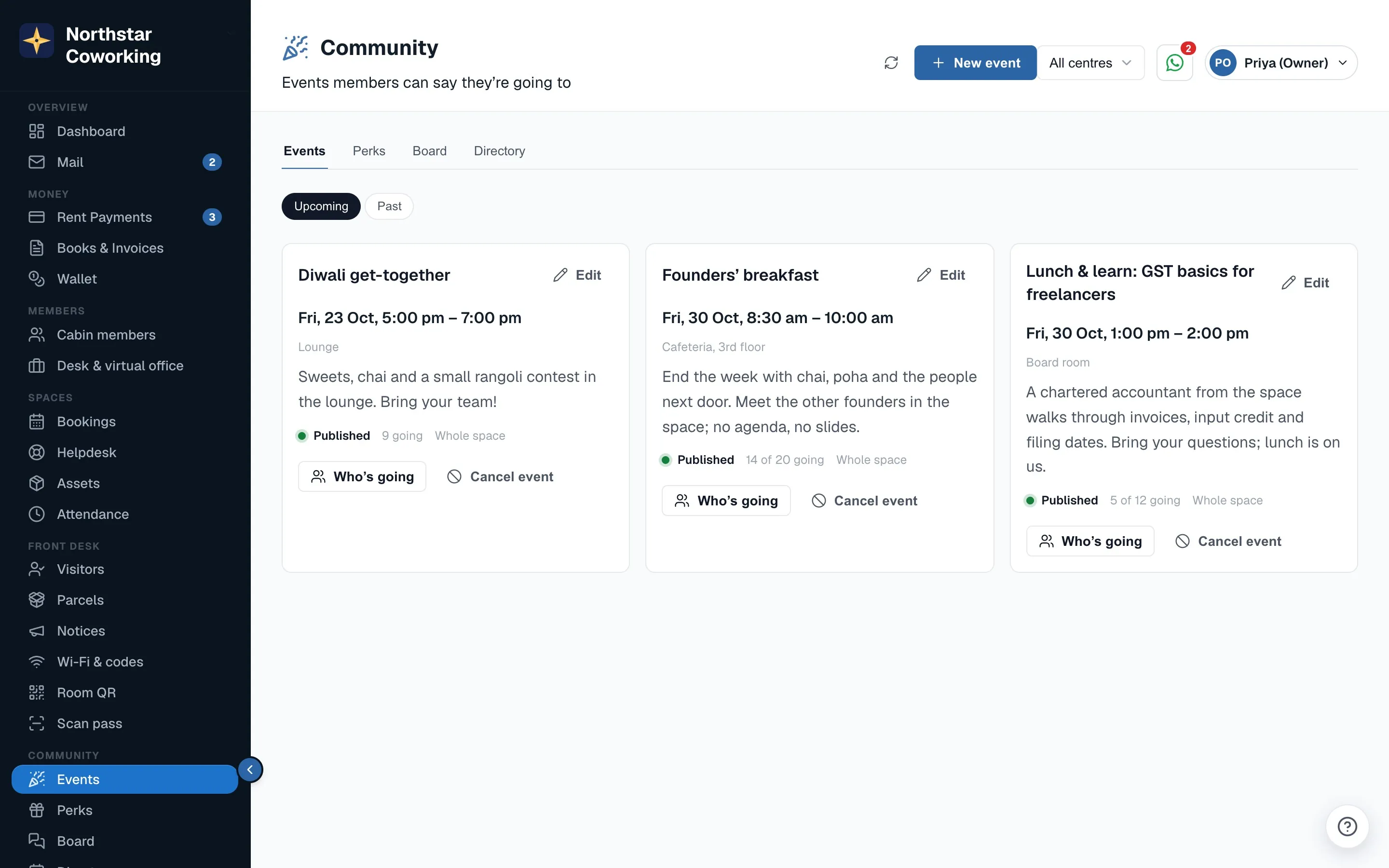
An event is anything you want members to turn up to: a Friday mixer, a tax talk, a Diwali lunch, a CPR class. Members see it in their app, say whether they are coming, and you get the list.
Create and publish an event
- Open Community → Events and click New event.
- Give it a Title and a short Description (plain text). Members read this on their phone, so keep it to a few lines.
- Set Starts and Ends, and type Where in your own words, for example Cafeteria, 3rd floor.
- Pick the Centre(s). Leave it empty and the event goes to every centre of your space.
- Add a Capacity if seats are limited. Leave it blank for an open event.
- Save as Draft to come back later, or Publish now.
Publishing sends a push notification to the members of those centres and the event appears on their Events page. Members with the event in the next 14 days also see a Next event card on their Home screen. Drafts are invisible to members, so you can prepare a month of events in one sitting and publish them one by one.
Who's going
Open the event and the Who's going list shows each person's name and company, with the count against the capacity, for example 18 / 25. Copy puts the list on your clipboard for a sign-in sheet, the caterer or a WhatsApp group.
- Members tap Going or Can't go in their app and can change their mind any time until the event starts.
- Each person RSVPs for themselves: a cabin tenant, a desk member and each member of a company team who has an app account.
- When the capacity is reached the event shows Full to members and nobody else can mark Going. If someone drops out, a seat opens again by itself.
- Once the end time passes, the event disappears from the member app. Your list on the staff side stays.
Change or cancel an event
Edit the event to change the time, the place or the capacity; members see the new details the next time they open the app. If you have to call it off, set the status to Cancelled. Everyone who had marked Going gets a push straight away, so they are not left waiting in the cafeteria. A cancelled event stays in your list for the record.
Perks
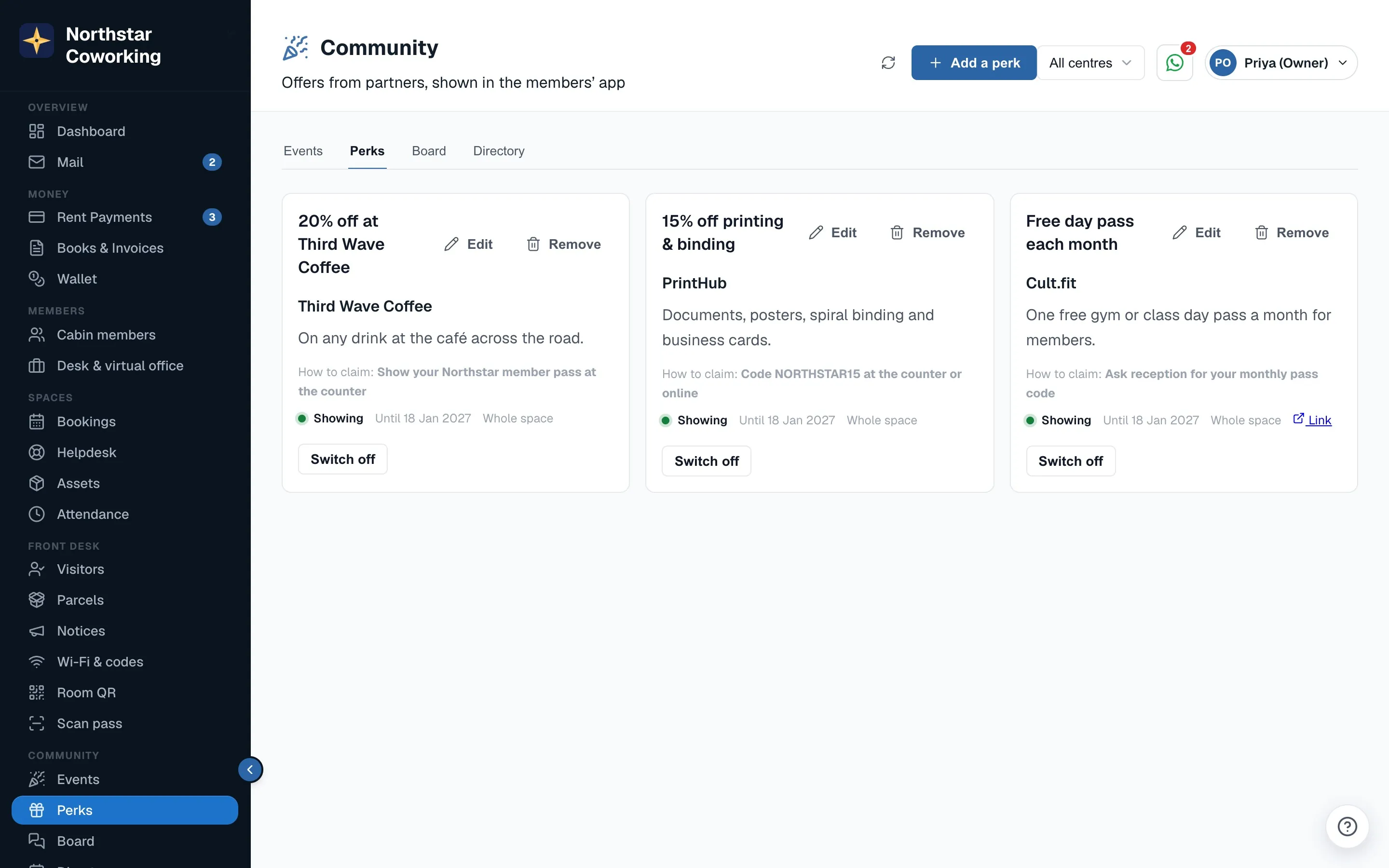
Perks are the offers you have negotiated for your members: a discount at the cafe downstairs, a free month at the gym, a lower rate with your accountant. They are a cheap way to make a membership feel like more than rent. Members see the list in their app and how to claim each one.
Add a perk
- Open Community → Perks and click New perk.
- Enter the Partner name (for example Third Wave Coffee) and a Title members will read at a glance, such as 20% off at Third Wave Coffee.
- Write the Details: what the offer is, which branch, any conditions.
- In How to claim put the code or the instruction, for example Show your member app at the counter or Code SPELL20 at checkout.
- Add a Link if the partner has a page for the offer. Only https links are accepted.
- Set Valid until if the offer ends, pick the Centre(s), and leave Active on.
- Save. It shows in the member app at once.
Members see only perks that are Active and not past their validity date, for their own centre. To pause an offer without deleting it, switch Active off; switch it back on when the partner renews. An expired perk drops off the member list by itself, so you do not need to tidy up on the day.
Good to know
- There is no redemption tracking in this version. If the partner asks how many members used the offer, ask the partner; the app does not count claims.
- Keep titles short and lead with the benefit. Free parking on Sundays at Forum Mall reads better than Forum Mall partnership.
- Perks and events both take a list of centres, so a lunch at the Annex does not reach members at the main building.
- Everything here is per space. A Group login that runs several companies manages each company's events and perks from that company's own sign-in.
- Staff get a push when a member rates a fixed helpdesk request 3 stars or fewer. It is a small thing, but it is the fastest way to catch an unhappy member before they stop renewing. See Handle a complaint.
Related guides
Still stuck? WhatsApp us or write to info@coworkingos.in. Tell us the member or screen and we'll sort it with you.