A floor plan shows your space the way you think of it: as a drawing, not a list. Each cabin, desk and room sits where it really is, coloured by what is happening there today. Members also get a map in the member app when they book a room or a hot desk.
Open it from Spaces → Floor plan on a computer, or More → Floor plan on the phone. Super Admins and Staff can add and edit plans; Admin viewers and guest viewers can look. Staff who are limited to some centres see only the plans of their centres. A guest viewer sees only the colours and labels, with no names or agreement dates.
Add a floor plan
- Go to Spaces → Floor plan and click Add a floor plan.
- In New floor plan, give it a Name such as Ground floor and pick the Centre it belongs to. A centre can have several plans, one per floor.
- Click Choose a picture or PDF and pick your floor drawing. A PNG or JPG works, or a PDF, of which the first page is used. Any architect's drawing, a fire-exit map or even a clear photo of a hand sketch will do.
- Click Create. The picture is resized to a sensible size and stored privately; it is never on a public web address.
Place cabins, desks and rooms
- Open the plan and click Edit shapes.
- Choose Add pin for a round marker, or Add rectangle for a room or cabin outline, then click the plan where it goes.
- Under What is it?, choose a Cabin, a Desk member, a Room or desk area, or a plain Label for places like the pantry or reception.
- For a hot-desk area, Which desk? lets you mark the Whole area or one numbered desk, such as D3, so the map shows each desk.
- Optionally add a Name on the plan, then Save. While editing, drag a shape to move it and drag a rectangle's corner to resize it; each change saves when you let go. Click a shape to change what it links to or delete it, and click Done when the floor is finished.
- Each cabin or desk member can appear once on a plan. A room or desk area can appear more than once only as different numbered desks.
- Shapes can only link to cabins, desks and rooms of the same centre as the plan. If everything is already placed, the picker says Nothing left to link at this centre.
- Positions are stored relative to the picture, so the plan looks right on any screen size.
What the colours mean
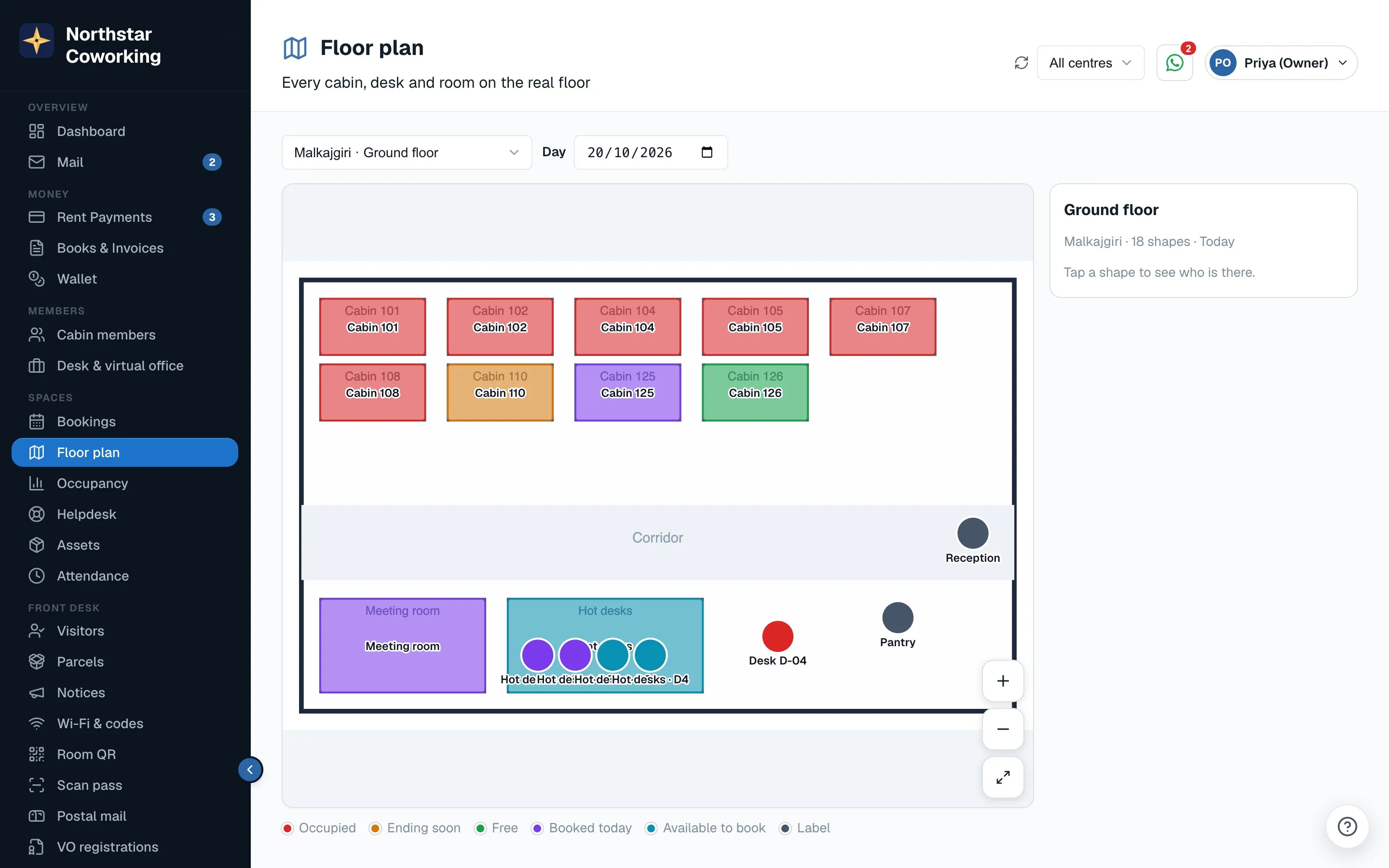
- Red, occupied: a cabin with an active member, or an active desk member.
- Amber, ending soon: an occupied cabin whose agreement ends within 60 days. The end date is shown.
- Green, free: a vacant cabin, or a desk without an active member.
- Purple, booked today: a room or desk with a booking today, or a reserved cabin.
- Teal, available to book: a bookable room or desk with nothing booked today.
- Grey, closed: a bookable space that is closed today. Labels are always neutral.
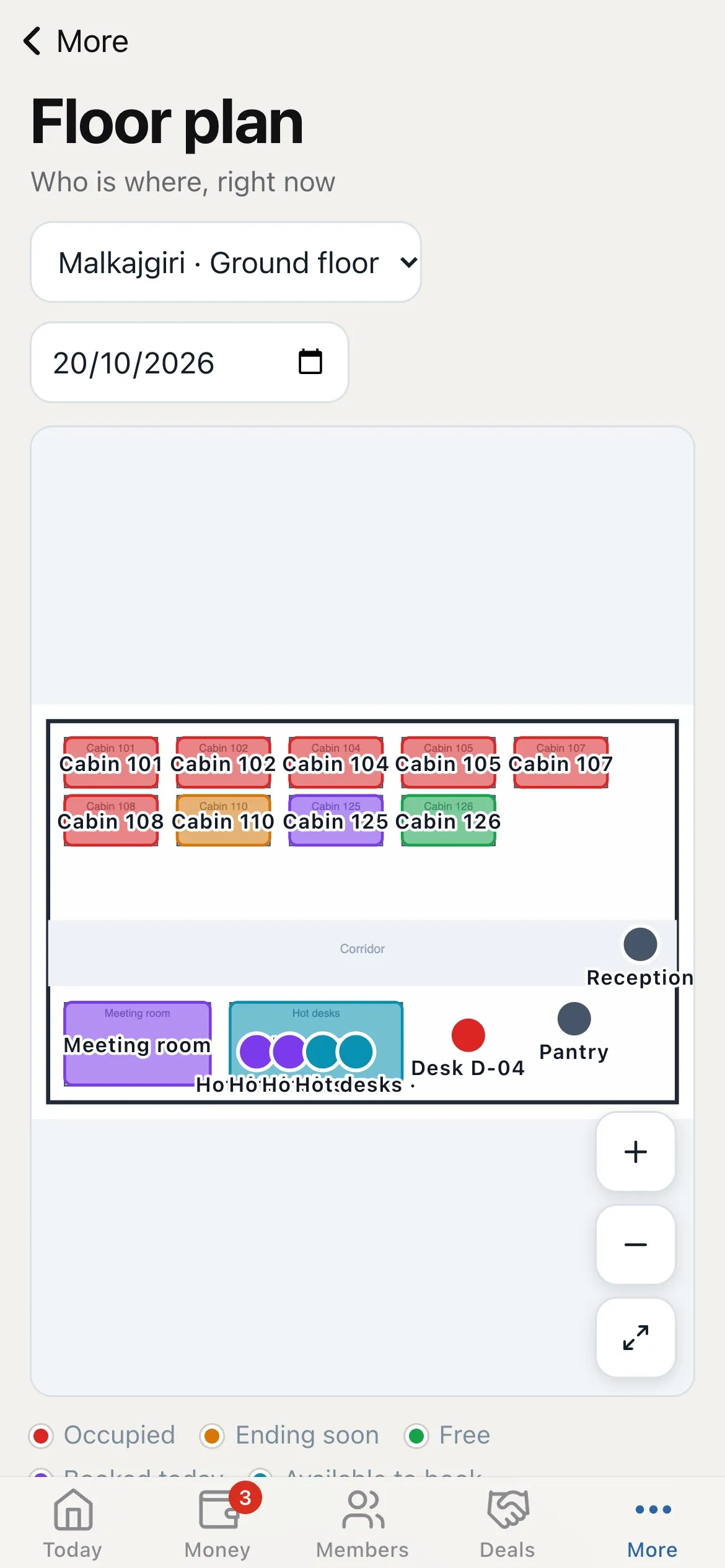
Click any shape to see who is there, when their agreement ends, and today's bookings with times, with a link to the member or the booking. Use the day picker to see another day's bookings. On a phone, pinch to zoom and drag to move around; Fit brings the whole floor back into view.
What members see
When a space has a floor plan with bookable rooms or desks, the Book screen in the member app shows a List | Map switch. The list stays the default; with no floor plan, nothing changes.
- The map colours only bookable rooms and desk areas: available or booked for the chosen day, or closed. Cabins, desk members and labels are drawn in plain grey, so the map never shows who sits where.
- Tapping a free room or desk area picks it and goes on to the usual date and time step. Price, free hours and booking rules are exactly as before.
- Hot desks are given out automatically when a member books, so tapping any free numbered desk picks that desk area and a free desk is assigned.
Change or remove a plan
- Open Floor plan settings on a plan to rename it, Change picture or Delete plan. You can also change its Centre, but only while the plan has no shapes; otherwise it asks you to remove the shapes first.
- Deleting a plan removes its shapes only. Cabins, members and rooms are never touched.
- If a cabin, desk member or room is deleted or moved to another centre, its shape stays on the map as no longer linked. Edit the plan to link it again or delete the shape.
Related guides
Still stuck? WhatsApp us or write to info@coworkingos.in. Tell us the member or screen and we'll sort it with you.