Members do not need to remember a password. They give their email, get a 6-digit code on WhatsApp or by email, type it in, and they are in. Google and Apple work as faster ways to prove the same email. Passwords still work for anyone who has set one.
Sign-in is by invitation only. A code only goes to a phone or email that is already on a member's record in your space. Someone who is not invited gets the same polite screen and nothing else, so nobody can tell from outside whether a number is on file.
What the member sees
- They open your space's address, for example sunrise.coworkingos.in, or the Coworking OS app. The screen says Sign in to Sunrise and asks for the email your space has for them.
- After Continue, the Welcome back screen offers their password, if they have one, or Email me a sign-in code. If your space sends codes by WhatsApp, the code goes to their sign-in phone, with Send to email instead underneath.
- They type the 6 digits. Done. They stay signed in on that device.
- On app.coworkingos.in, where no space is named, they give their email first, prove it with a code, and then pick from Choose your space.
The screens for Google, Apple and staff are described in Signing in to Coworking OS. A member can see and manage their own methods under Account → Sign-in methods in the app.
WhatsApp or email
- Codes go by WhatsApp from your space's own WhatsApp number, once WhatsApp sign-in is switched on for your space. There is no shared Coworking OS number.
- Until then, and for any member without a sign-in phone, codes go by email.
- A member who has not signed in for 180 days, or whose WhatsApp did not deliver, is also sent the code by email.
WhatsApp codes need two things from your space: your WhatsApp Business number connected in Integrations, and WhatsApp sign-in switched on for the space. Until both are in place, every code goes by email, and the code screen does not offer WhatsApp at all. Nothing breaks in between; members simply use email.
What staff set up
- Cabin members: open the member → Portal tab → Sign-in phone. Enter the mobile that should receive codes. It must be unique in your space.
- Desk & virtual office: open the member → App tab → Sign-in phone.
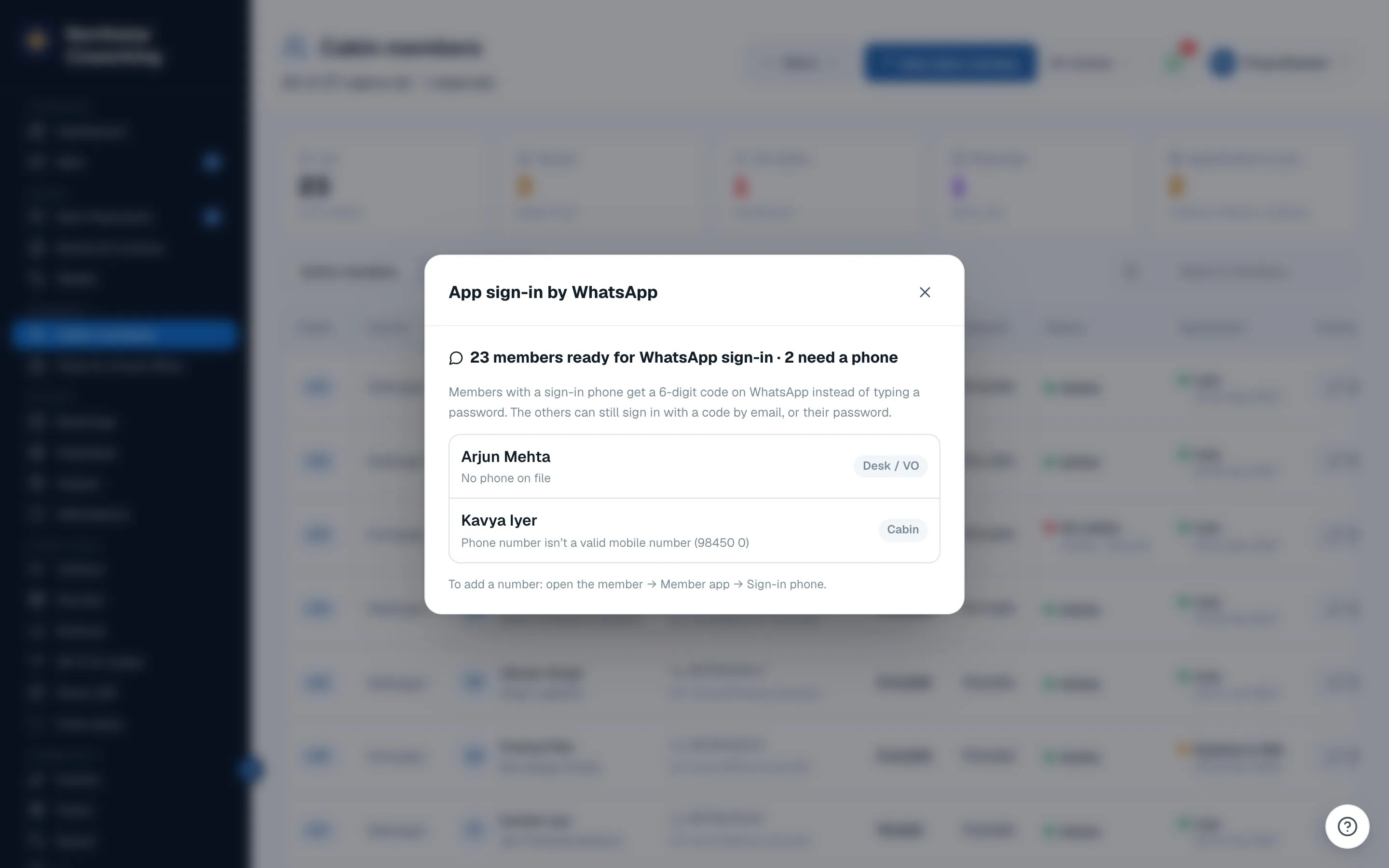
- Review everyone at once: Cabin members → ⋯ → App sign-in by WhatsApp. It lists who is ready and who still needs a phone, for example 23 ready · 2 need a phone.
- Staff can set a sign-in phone on an invite that has not been used yet. Replacing a phone that is already in use is for the Super Admin; the member is told, and other devices are signed out.
- Turn off access on the member's Portal or App tab signs them out of every device at once and clears the sign-in phone.
Safety limits
- A code lasts 10 minutes and works once. Asking for a new one does not extend the old one.
- 5 wrong tries in an hour stops further tries for that phone or email. Sending a fresh code does not reset the count.
- 10 wrong tries in a day locks sign-in for an hour and emails the member, so they know if someone else is trying.
- A sign-in lasts 30 days and extends each time the app is used, up to 180 days, after which the member signs in again.
- A member can be signed in on up to 10 devices. Signing in on a new device sends them an email.
- Changing their phone or email, setting a password or deleting their account asks for a fresh code first, even when they are already signed in.
- Every sign-in, code and failed attempt is recorded for the space's audit.
Common questions
- "I didn't get the code." Check the sign-in phone on their record and whether WhatsApp sign-in is on. Ask them to tap Send to email instead. Check spam for the email.
- "It says the code isn't right." Codes expire in 10 minutes and the newest one is the only valid one. Ask them to request a fresh one and type it within the time.
- "Which email do I use?" The one your space has on their record. A different Gmail can be linked afterwards; see the Google notes in Signing in to Coworking OS.
- "Can members still use a password?" Yes. Passwords are optional and set from Account → Sign-in methods. Codes work alongside.
Related guides
Still stuck? WhatsApp us or write to info@coworkingos.in. Tell us the member or screen and we'll sort it with you.