Everyone who uses your space is a member. Those with a cabin are Cabin members; those with a seat or just an address are Desk & virtual office members. Both groups live under MEMBERS in the left menu, and both get the same member app.
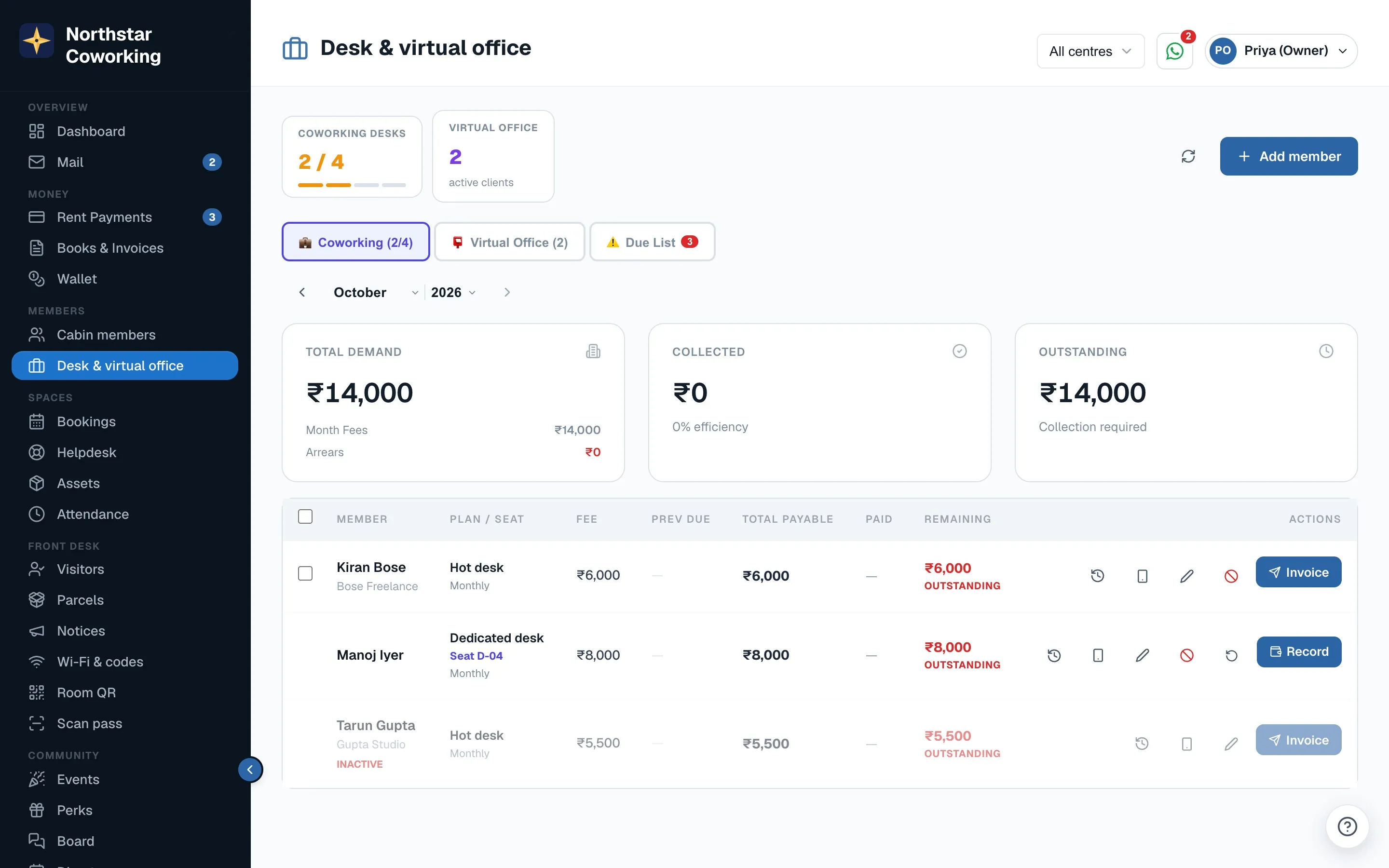
Where to find them
- Web: left menu → MEMBERS → Desk & virtual office. Cabin members are the row above it.
- Phone app: the Members tab opens Cabin members. Tap More and look for the Members group, which has both rows. The Cabin members ⋯ menu also links across.
- The Desk & virtual office page uses the desktop layout on the phone, so turn the phone sideways for a wide list.
Cabin or desk?
The split is simple. A person or company with a private cabin is a cabin member, whatever else they use. Everyone else is a desk or virtual office member. The two lists look alike, with name, company, contact, what is due and the last payment, but they are billed and reported separately, so keep each member on the right list from the start. The Excel export has one sheet for each, named Cabin members and Desk & virtual office.
Plans
A desk or virtual office member has one of three plans:
- Dedicated desk: a fixed seat, for example D-04, billed monthly.
- Hot desk: any free seat, billed monthly or per visit, as you set up.
- Virtual office: a registered address and mail handling, no seat.
The plan, seat and monthly amount sit on the member's record. Change them from the member's page; the next bill follows the new amount.
Adding one
- Open Desk & virtual office and click Add member.
- Fill the name, company, mobile and email. The email is what they sign in with, so take care with it.
- Choose the plan, the seat where there is one, the monthly amount, the start date and any deposit.
- Save. To let them use the member app, open the member and go to the App tab to send the invite.
Bringing in many at once? Use the Desk & virtual office sheet in the import template; see Bring your members in from Excel.
Bills and payments
Desk and virtual office members are billed on their own cycle, separate from cabin rent. Their invoices appear on the Bills tab in their member app, with a PDF for each invoice and receipt.
- They can pay online when a gateway is connected, or by UPI: they scan your QR, pay, and tap I've paid with the UTR. The claim lands with you to confirm, exactly as for cabin members.
- A bank transfer you spot on the statement is recorded from the member's page; the receipt goes out by itself.
- What is due shows on the Desk & virtual office list, so the month's chasing is one glance.
Helpdesk, bookings and the member app
- Helpdesk: tickets can be raised for them. Helpdesk → New ticket lists them by name with their type, for example Manoj Iyer · Desk member · Dedicated desk · Seat D-04. They can also raise their own from the member app under Help.
- Room booking: with bookings switched on, they book meeting rooms from the member app at the member rate, and any free hours on their plan are used first.
- Member app: Home shows what is due, their plan and seat and your contact details; Bills, Book, Help and Account work as for everyone else. The member-side view is in Your member app: sign in and install.
Sorting the Cabin members list
While you are in Members: the Cabin members list is sorted by cabin number by default. The Sort picker offers Cabin number, Name A to Z, Most due and Newest, and the app remembers your choice for this space.
Sign-in by WhatsApp
Desk and virtual office members sign in to the app with a 6-digit code by WhatsApp or email, or with a password if they set one. To send codes by WhatsApp, the member needs a Sign-in phone: open the member → App → Sign-in phone. Details are in How members sign in.
Common questions
- Can a desk member raise a complaint from the app? Yes, under Help, with a photo. It lands in Helpdesk like any other ticket and they follow the fix in the app.
- Do they see the room booking page? Yes, when bookings are on for your space. Free hours on their plan, if any, are used first.
- Can I record a cash payment? Yes, from the member's page, the same way as for cabin members. The receipt goes out by itself.
- Can several people share one virtual office login? Not yet. Teams with several sign-ins are for cabin companies only.
Related guides
Still stuck? WhatsApp us or write to info@coworkingos.in. Tell us the member or screen and we'll sort it with you.