Members rarely complain; they just do not renew. A short survey every month tells you where you are slipping before it costs you a cabin. Coworking OS sends it, reminds people, closes it, scores it and tells you what to fix first. Open Community → Surveys on the desktop (More → Community → Surveys on the phone).
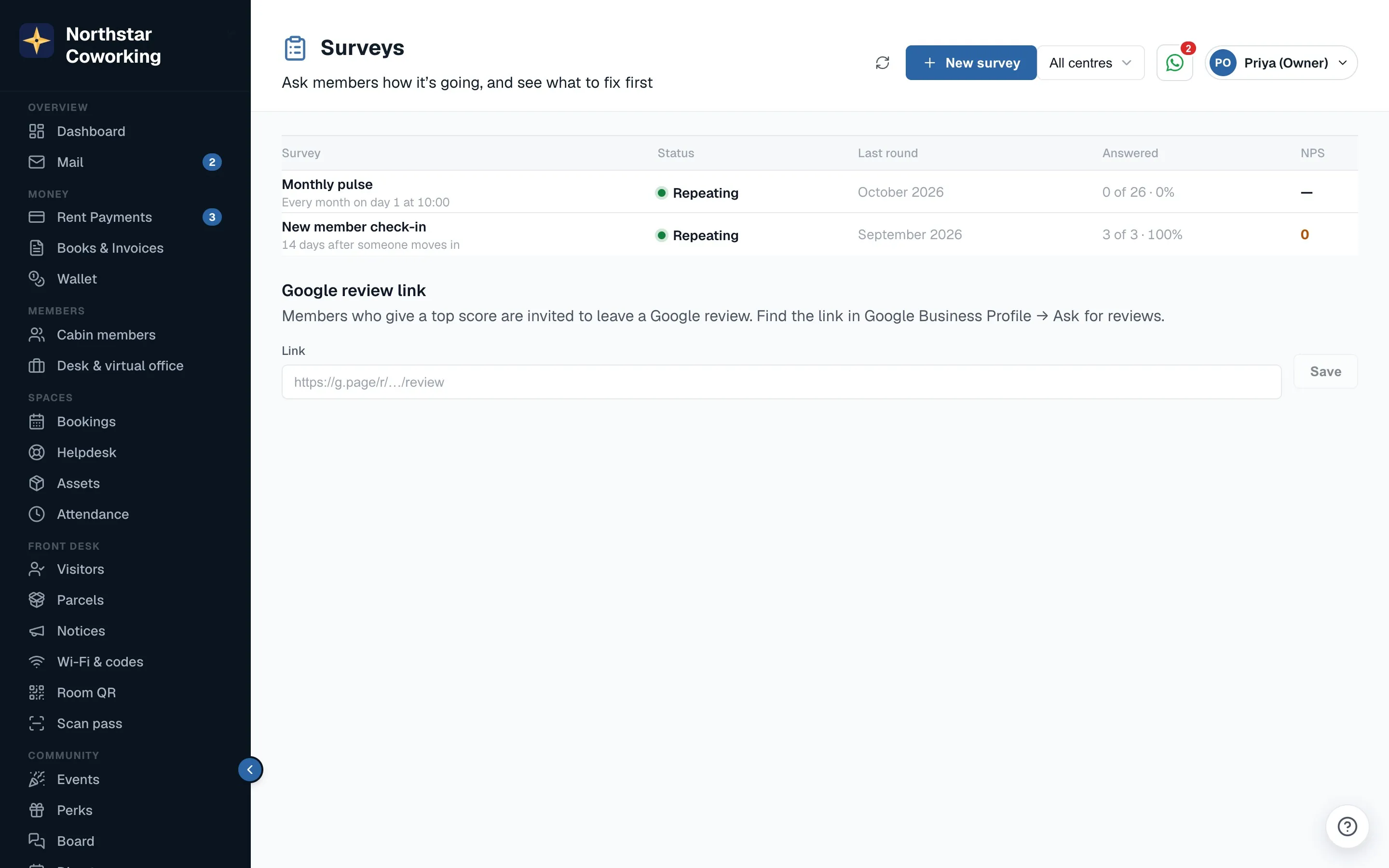
The list shows every survey with its status (Draft, Scheduled, Live, Repeating or Closed) and the last round's response rate and NPS. Super Admins and Staff create, send and follow up. Admin viewers and guest viewers can read results.
Start with the monthly pulse
The Monthly pulse is the default template and the one to begin with. It takes a member about 45 seconds: an NPS question (How likely are you to recommend {space} to a friend or colleague?, 0 to 10), an overall rating for the month (1 to 5 stars), What should we improve first? with 12 options from Wi-Fi to billing, and an optional comment. Repeated every month it gives you a trend, which is worth more than any single answer.
- Click New survey and pick Monthly pulse.
- Edit questions if you want: add, remove or reorder, change a question's type, make it required or optional. Keep it short; the editor warns you above 5 questions because short surveys get two to three times the answers.
- Audience: all members, one or more centres, cabin tenants only, desk and virtual-office members only, and company heads only or everyone in each company's team.
- Schedule: send now, on a date, or Repeat monthly on a day of the month (1 to 28) at a time you choose. Quarterly is also available.
- Preview it exactly as a member will see it, then Send or Schedule.
Other templates
- Facilities check (quarterly): ten areas rated 1 to 5, from Wi-Fi speed to parking, then Which one matters most to you? and a comment.
- New member check-in (automatic, 14 days after move-in): was moving in smooth, did they get everything on day one, what was missing, and NPS.
- Exit survey (automatic when notice is given or a vacate date is set): the main reason for leaving, how their time was, would they come back, what you could have done better.
- Event feedback (automatic, the day after an event they RSVP'd Going to): rating, would they come again, what events they would like.
- Meeting rooms (on demand): was booking easy, was the room ready and clean, did the screen work.
- Annual member survey: NPS, the facilities ratings, value for money, community, and the one thing that would make them stay longer.
- Blank: build your own from the question types below.
Question types: NPS 0 to 10, stars 1 to 5, single choice, multiple choice, Yes/No, short text (200 characters) and long text (1,000). Up to 12 questions and 20 choices per question. Write {space} or {first_name} in a question and the app fills them in. Only one live repeating survey per template at a time, so you cannot send two monthly pulses by mistake.
Who gets it, and how
- Only active people with an email address or a member-app account. Nobody who has left.
- Fatigue control is on by default: anyone who received another survey in the last 30 days is skipped. The automatic check-in, exit and event surveys are exempt because they belong to a moment. You can switch fatigue control off per survey, but think twice.
- A member can opt out of surveys in Account → Notifications. They are then never sent one.
- In the member app: a push (Quick question from {space} · 1 min) and a card at the top of Home until they answer or close it.
- By email: a branded email from your space with one button to a page at /survey/<token>. It works without signing in and each link is single-use.
- Share link: on the survey page, Share link gives one open link for the round, with Copy link and Share on WhatsApp. The page asks for Your name and Cabin number (or I'm a desk / virtual-office member), phone optional, and matches the person to the member. One answer per person.
- One reminder goes to non-responders after 3 days (set it anywhere from 0 to 7). The round closes after 7 days (1 to 30). A repeating survey's next round opens only after the last one closed.
- Everything goes out between 10:00 and 19:00 in your space's time zone (Asia/Kolkata unless you changed it). A send due at night waits for the morning.
Named answers
Every survey is named, so you can follow up. Members see {space} will see your name and cabin with your answers before they start. In the member app there is nothing to fill in: the screen shows Answering as {name} · Cabin {n}. The personal email link shows the same line, with a Not you? link that asks for name and cabin.
Results and NPS show from the first answer, with each person's name, cabin and company, and a Who answered list. Rounds that were anonymous before 20 October 2026 keep their old rule and show results only from 3 answers.
Reading the results
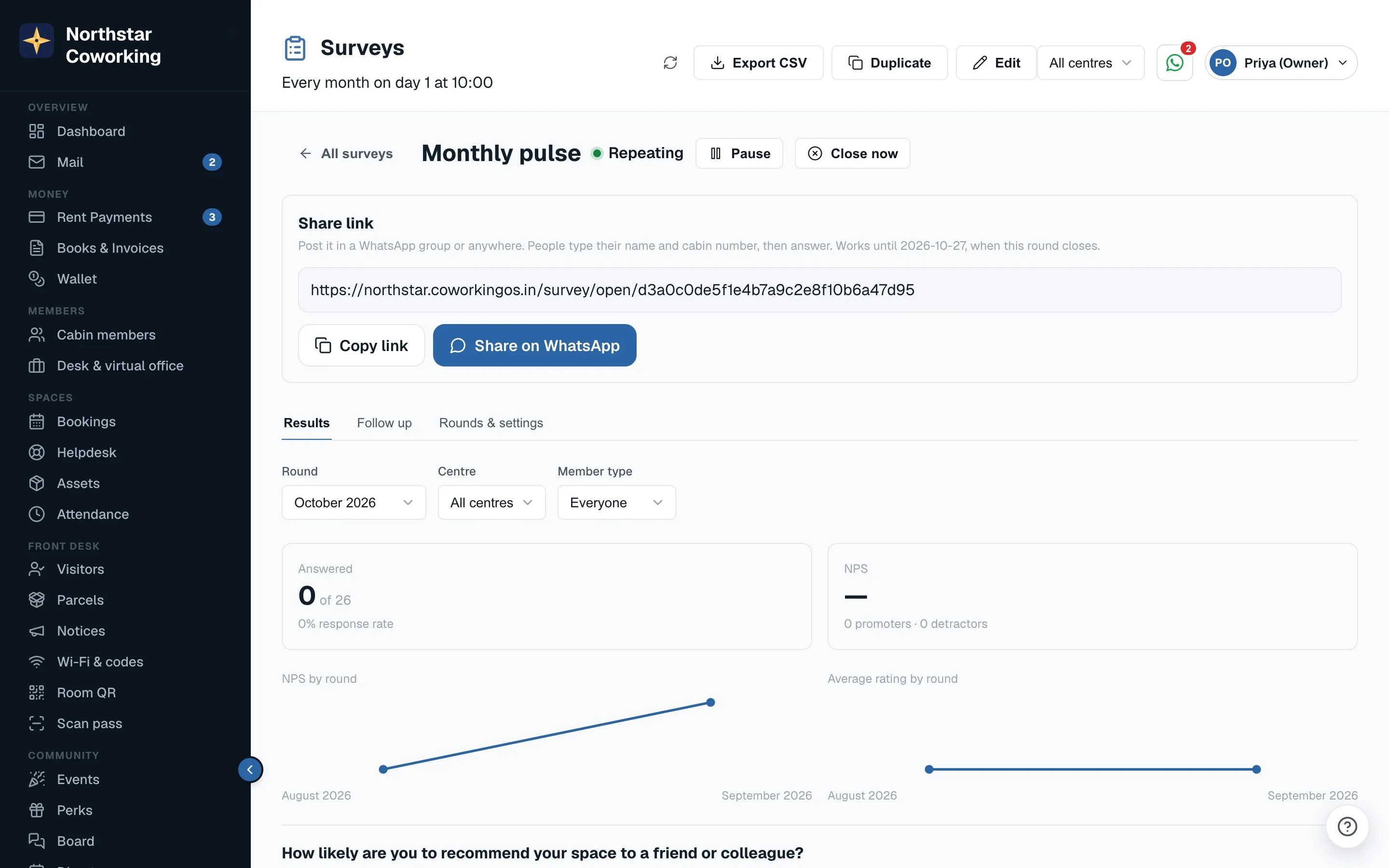
- Headline: response rate, NPS with the promoter (9 to 10), passive (7 to 8) and detractor (0 to 6) split, and the average rating. NPS is % promoters minus % detractors, so it runs from -100 to +100; anything above 0 is more fans than critics, above 30 is good.
- Trend: NPS and average rating per round, with a line such as ▲ +8 since last month.
- Per question: an NPS bar, star distribution, choice counts sorted by popularity, Yes/No split, and a searchable list of text answers.
- What to fix first: the 3 lowest-rated areas this round and how they moved, plus the most-picked improvements, in plain sentences: Wi-Fi is your weakest area (2.9★, down from 3.6★). 41% picked it as the first thing to improve.
- Filters by centre and by member type (cabin, desk, virtual office).
- Export CSV for your own analysis or a board meeting.
- Once a survey has results, a Member NPS card with the latest round and trend arrow shows on your Today screen.
Follow up with detractors
The Detractors list shows everyone who gave an NPS of 0 to 6 or a rating of 2 or less, with their name, company and comment. Staff get a push for each one as it arrives. Two buttons next to each person: Open a helpdesk request, prefilled with their comment, so the complaint goes into the normal fix-and-confirm flow (see Handle a complaint), and Mark followed up once you have spoken to them. An answer typed in through the share link that did not match a member shows Not matched to a member instead. A phone call within a day of a bad answer is the single most effective retention tool you have.
Ask happy members for a Google review
A Super Admin can paste your Google review link on the Surveys page under Google review link (an https address, up to 500 characters; get it from Google Business Profile → Ask for reviews). When it is set, the thank-you screen after a survey offers Leave a Google review and Not now to respondents who gave an NPS of 9 or 10, or 5 stars overall on a survey without an NPS question. The wording is neutral and nothing is offered in return. The Surveys page shows how many times the prompt was shown and how many tapped it.
Managing a survey
- A survey's page has its Rounds, the results for each, the Follow-ups, and Settings.
- Pause a repeating survey over a holiday month and Resume it after. Close now ends the current round early. Duplicate makes a copy to edit.
- Each round is labelled by its period, for example October 2026, so the trend reads month on month.
Related guides
Still stuck? WhatsApp us or write to info@coworkingos.in. Tell us the member or screen and we'll sort it with you.