The last two tabs on the Front desk page are Room QR and Scan pass. Room QR is for every space with meeting rooms. Scan pass works only where the space has passes set up; if you are not sure yours does, ask support. Scanning works on the web now, including Safari on a phone; it reaches the iPhone and Android apps with their next store builds. Super Admins, Admin viewers and Staff can open the page; on the phone it is under More → Front desk.
Room QR: a poster for each room
Each meeting room gets a printable A4 poster with its name and a QR code. Stick it on the door. Anyone who scans it, member or guest, lands on that room's booking page, already set to today and showing only the free times. A member who is standing outside an empty room can have it booked before they sit down.
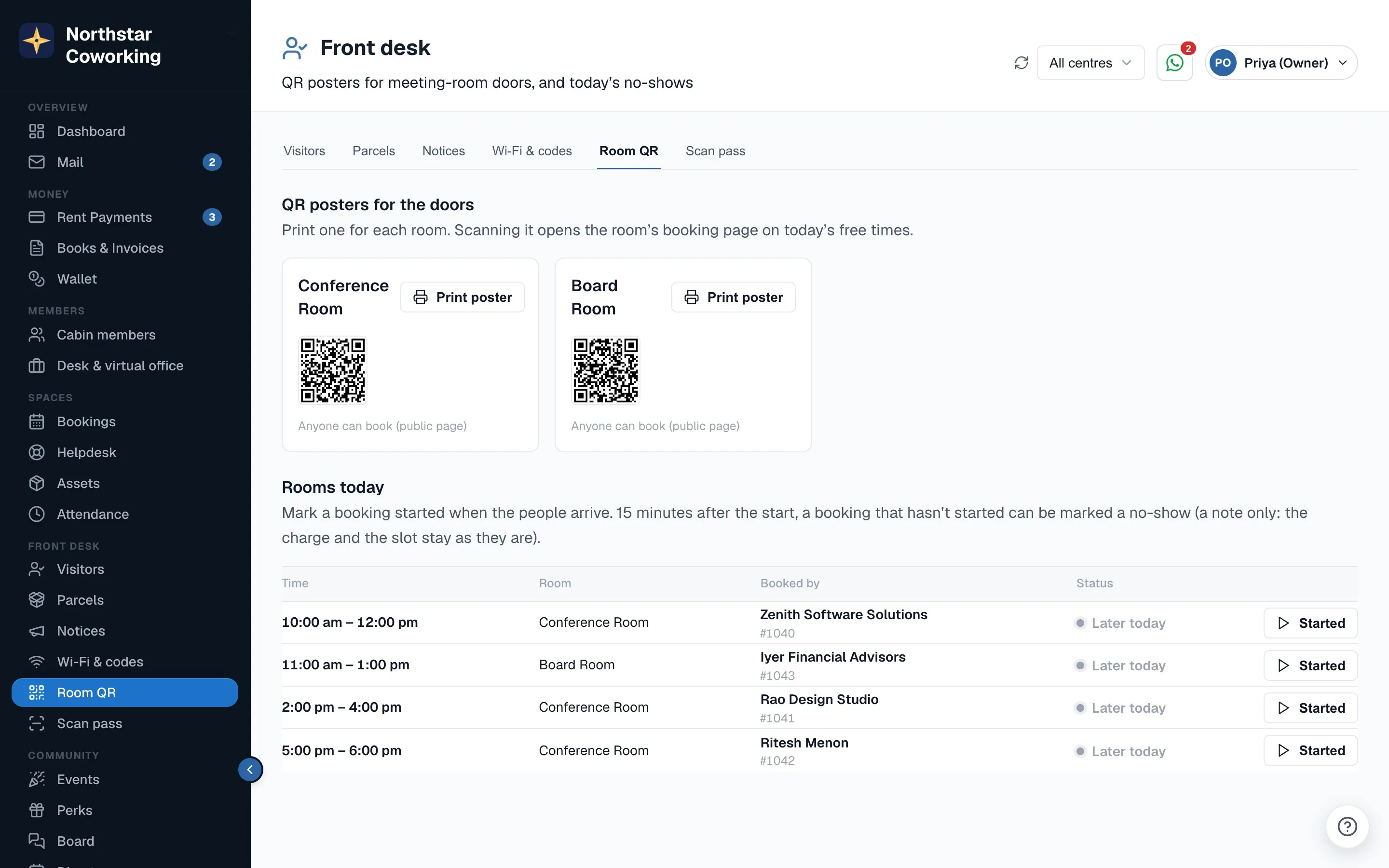
- Open Room QR.
- Press Print poster on a room. The A4 page opens; print it, or save it as a PDF for a framed sign.
- Scan it with your own phone once to check it opens the right room before you put it up.
The posters do not change when prices or timings change, because the QR points at the room's page and the page always shows today. You only need to reprint if you rename a room or add a new one.
Today's bookings: Started and No-show
The same tab lists today's bookings room by room. For each booking the desk can press Started when the people walk in, or No-show when the slot has gone past and nobody came. This is a note for the office, not an automatic step: scanning the poster or checking in does not mark a booking as started, someone at the desk does.
Scan pass
Where the space has passes set up, each member carries a pass with a code. The desk scans it to check who is in front of them. Scanning works with whatever has a camera: the computer's webcam, a tablet at reception, or a staff phone. If the camera is awkward, type the code from the pass instead.
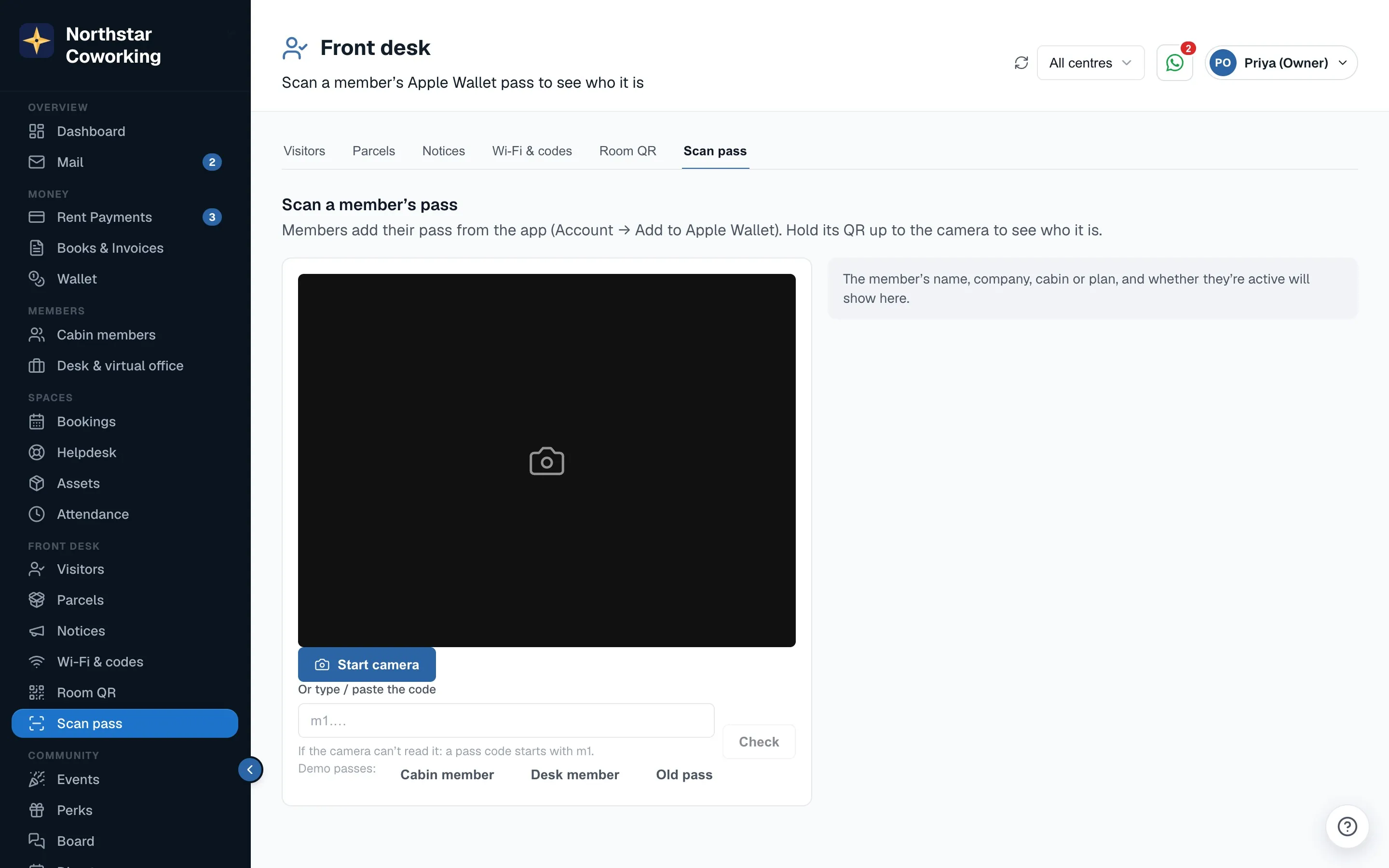
- Open Scan pass. Allow the browser to use the camera the first time.
- Hold the member's pass in front of the camera, or type the code and press Check.
- A big card appears with the member's name, their company, their cabin or plan and their centre, with a clear status.
The status is one of four:
- Active: a current member of your space. Let them in.
- Ended: the member has moved out or the plan has ended. The pass is no longer valid.
- Revoked: someone on the team has cancelled this pass.
- Not ours: the code is not a pass from your space. It may be from another space or simply a wrong code.
Super Admins and Staff can press Revoke pass on the card. Use it when a pass has been lost, a phone stolen, or a member has left and the pass must stop working at once. A revoked pass shows as revoked from the next scan.
Good to know
- Admin viewers can scan and see the card but cannot revoke.
- The scanner uses the browser's camera, so it works on the reception computer without any extra app.
- If scanning shows nothing or an error about passes, the space does not have passes set up yet. Ask support.
- Rooms, prices and free hours are set up under Bookings; posters only point at what is already there.
Related guides
Still stuck? WhatsApp us or write to info@coworkingos.in. Tell us the member or screen and we'll sort it with you.