A door screen is a web page for a tablet that hangs outside a meeting room. Green and FREE when nobody is in, red and BUSY during a meeting, with the clock, your logo and the rest of today's bookings. Any tablet with a browser will do; there is nothing extra to buy and no app to install.
Set it up on a computer in Front desk → Room QR, in the section Room screens for the doors. Super Admins and Staff set up and change screens; Admin viewers can look. Guest viewers do not see Front desk. The phone app's Room QR screen asks you to use a computer.
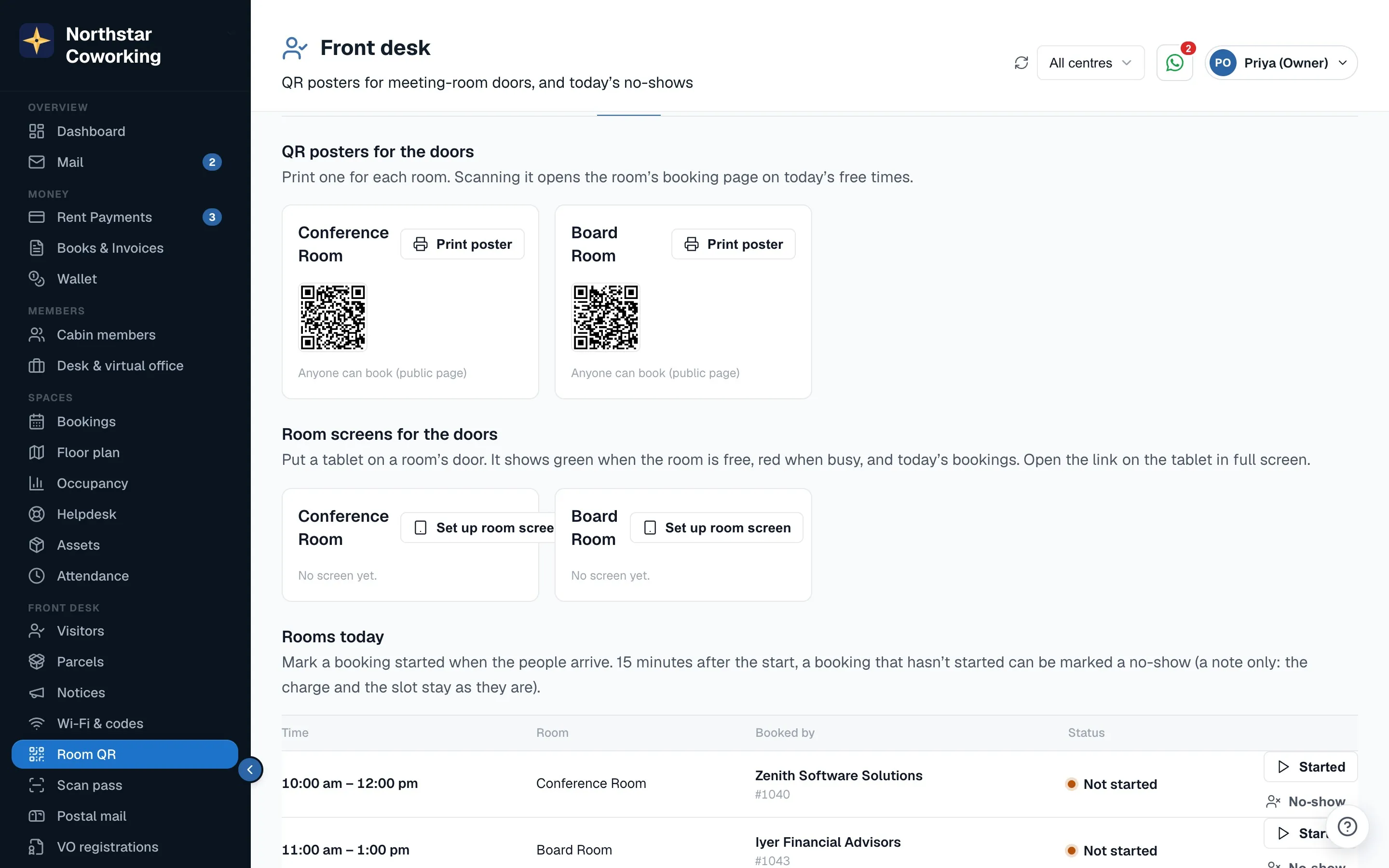
Set up a screen
- Under Room screens for the doors, press Set up room screen on the room's card.
- Enter a 4-digit Room PIN. People type it on the tablet to book now or end a meeting early. Share it with your members the way you share the Wi-Fi password.
- Choose the two options: Show meeting names on the screen (otherwise it shows just Booked and the company), and Free the room if nobody checks in within 10 minutes. Both are off unless you tick them, and each room can be different.
- Press Create link. Scan the QR with the tablet, or Copy link and open it there. Put the browser in full screen.
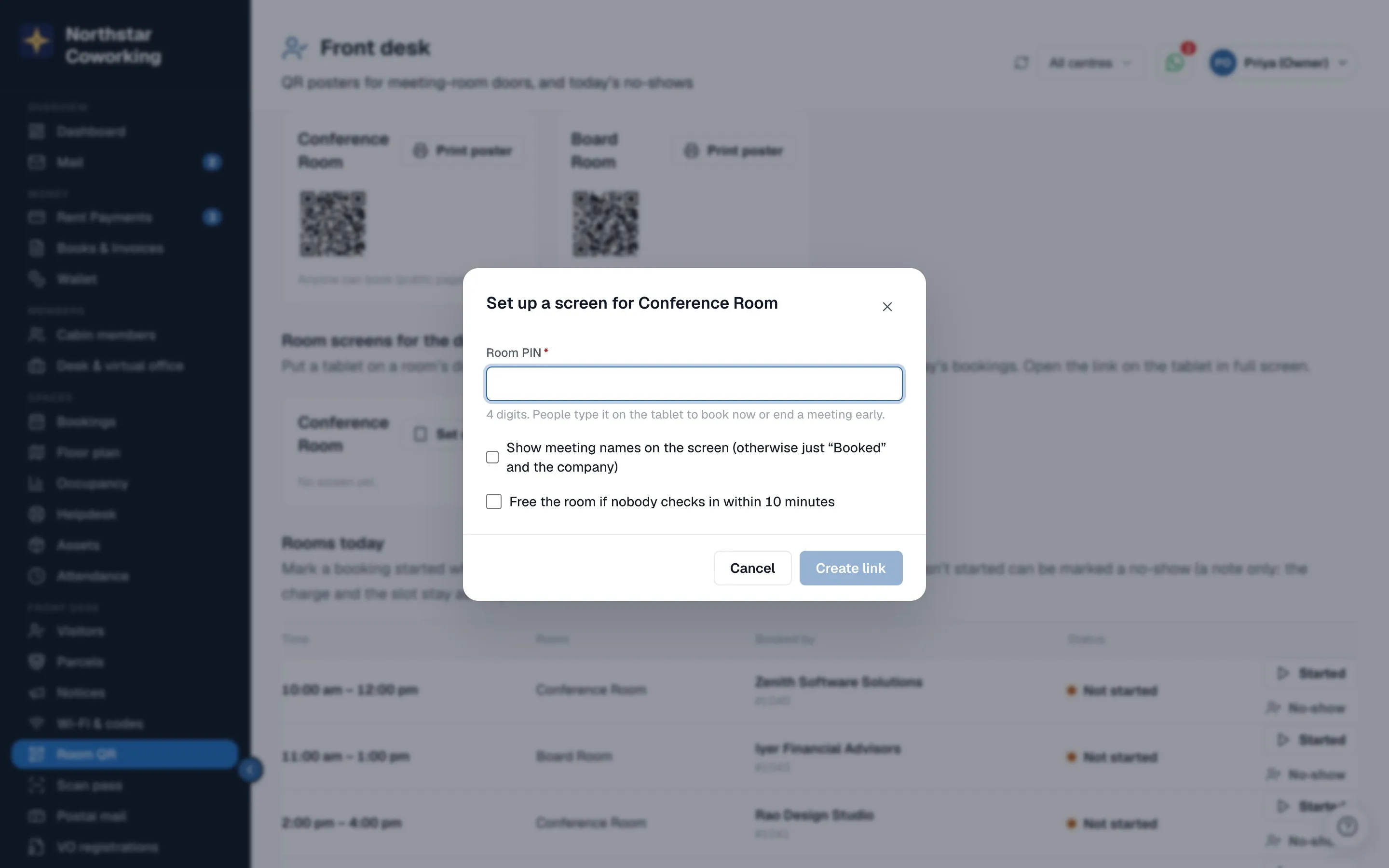
What people can do at the door
- Book now · 15 min, 30 min or 60 min when the room is free. The tablet asks for the room PIN. It becomes a walk-in booking at the room's usual price, marked Walk-in at the room screen, started straight away. It follows the room's opening hours, closures and existing bookings, so it cannot clash.
- Check in for a booking, from 10 minutes before it starts. No PIN is needed. It marks the booking started, the same as Started at reception.
- End early during a meeting, with the PIN. The booking is shortened to end now, and the room shows free.
Five wrong PINs on one screen lock the PIN for 10 minutes. The pad closes on its own after 30 seconds of no taps.
Freeing the room when nobody comes
With Free the room if nobody checks in within 10 minutes on, a booking that has not been checked in or started 10 minutes after its start time is cancelled, and the room shows free. Money follows your space's normal refund setting for a cancelled booking. This check runs when the screen refreshes, so it works only while the tablet is on and online.
Keeping it running
- The screen refreshes every 30 seconds and asks the tablet to stay awake. Plug the tablet in.
- If the connection drops, a banner says No connection and shows the time of the last update. It recovers on its own.
- Each room card shows when its screen was Last seen. Use Settings to change the PIN or the two options, and Remove to switch a screen off.
- The screen never shows phone numbers, emails or amounts.
Related guides
Still stuck? WhatsApp us or write to info@coworkingos.in. Tell us the member or screen and we'll sort it with you.