With two or more centres you can see each building's profit next to the others. Costs that belong to no single building, such as head-office salaries or software, are shared out by a rule you choose, so each centre carries a fair part of them.
This appears only when your space has two or more centres. Super Admins and Admin viewers can see it; Staff and guest viewers do not see Profit & loss at all.
1. Put costs on a centre
- When you log an expense, its centre is the centre you are working in, or Whole company for a cost that belongs to no single building.
- Recurring expenses now carry a centre too. In Log expense, use Open settings next to Manage all recurring? to open Recurring expenses, where each one has a centre, or Whole company. When you Post recurring, each expense goes to its own centre. Recurring expenses you had before were moved to your Main centre once; check them and change any that belong elsewhere.
2. Choose how shared costs are split
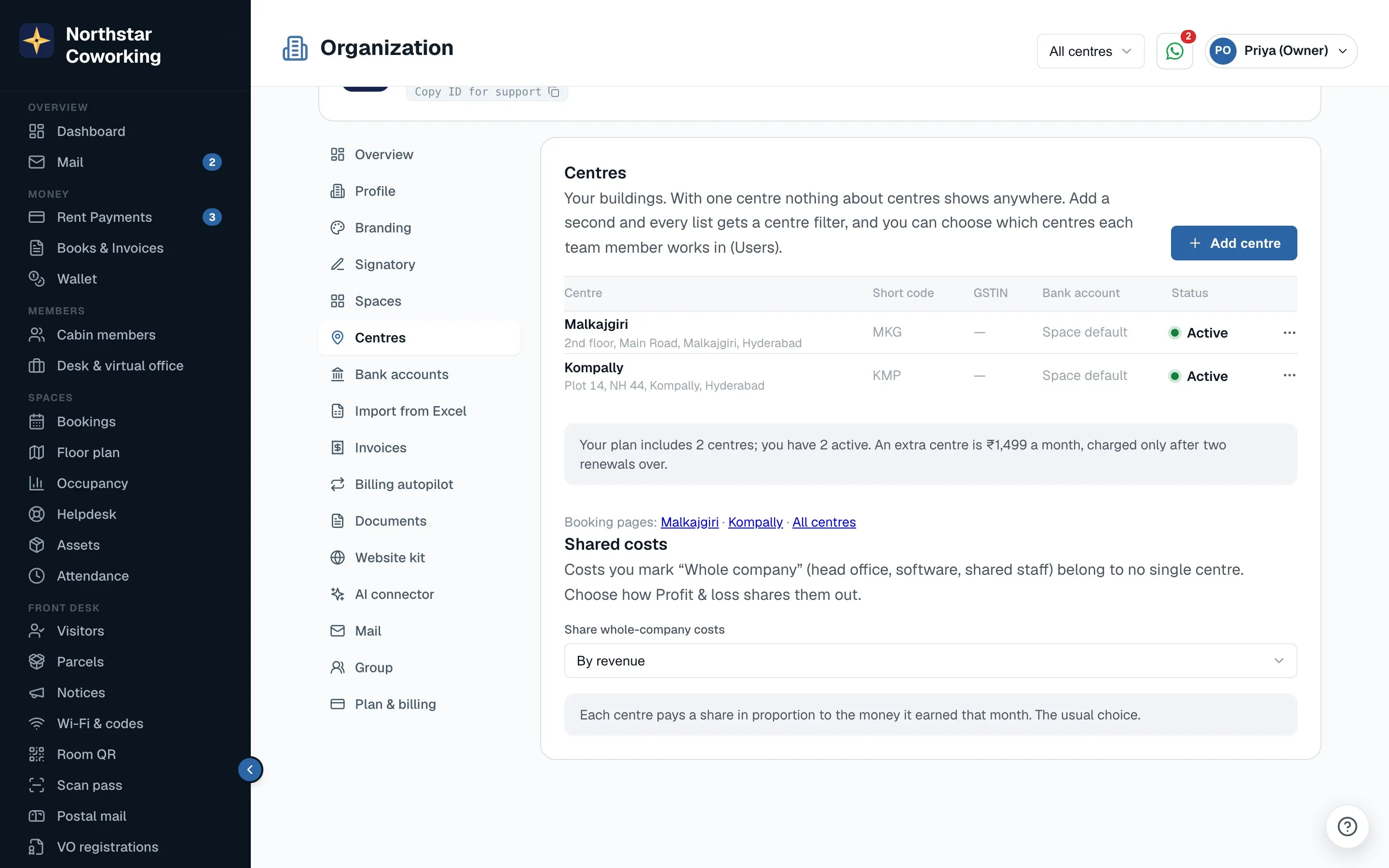
Open Settings → Organization → Centres and find Shared costs. Under Share whole-company costs, pick one:
- By revenue (the default): each centre pays in proportion to the money it received that month. The usual choice.
- By seats: in proportion to the seats on each centre's cabins. A cabin with no seat count counts as one seat.
- Equally: every centre pays the same share.
- Not shared (shown separately): whole-company costs stay on their own line, and each centre shows only its own costs.
If there is nothing to share by in a month, for example no revenue, the costs are not shared and stay on the Whole company line. They are never lost.
3. Compare centres
Open Books & Invoices → Profit & loss and choose By centre.
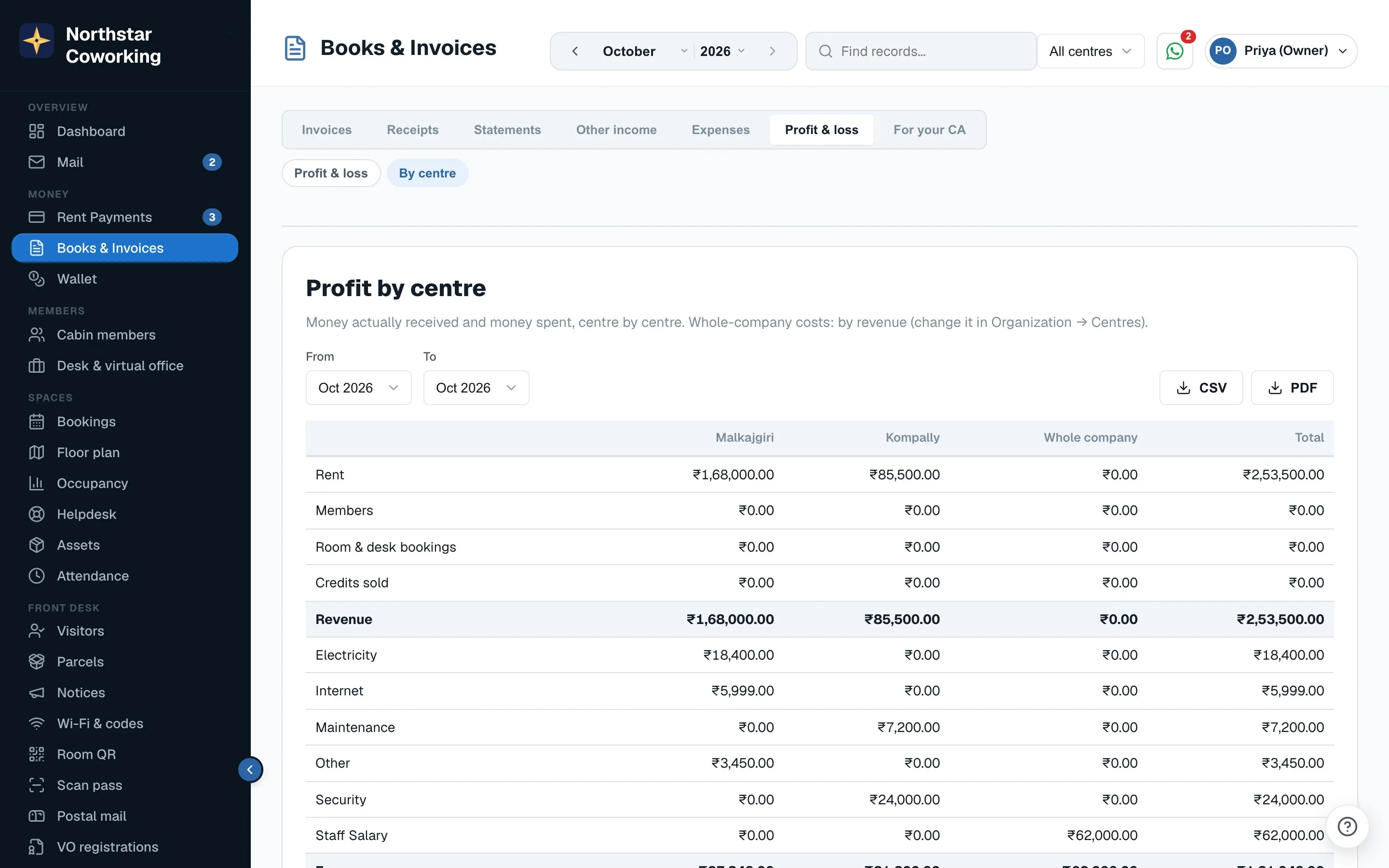
- Pick a month in From and To, or a range of up to 36 months. With a range, Show lets you look at the whole range or one month of it. Each month is shared out on its own numbers, then the months are added up.
- Rows: Rent, Members, Room & desk bookings and Credits sold add up to Revenue. Then each expense category, Expenses, Shared costs (allocated), Net profit and Margin %.
- It is on cash basis: money actually received and money spent, the same lines as your normal cash Profit & loss.
- CSV and PDF download exactly the table on screen.
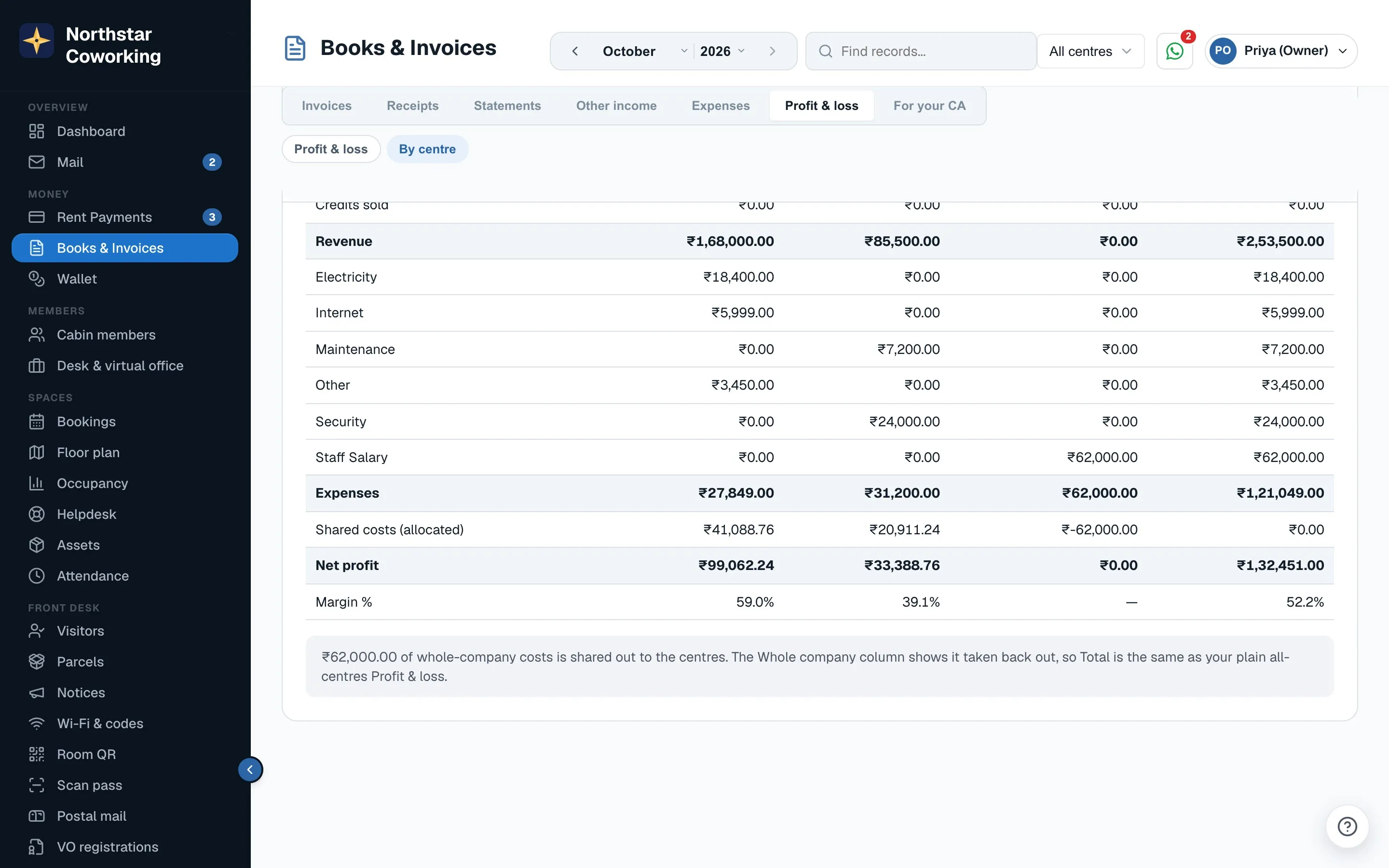
The Whole company column shows its own costs, then the amount shared out taken back off as a negative Shared costs (allocated). So the shared line adds up to zero in Total, and Total is always the same as your plain all-centres Profit & loss.
One centre's own Profit & loss
When you pick a single centre in the centre switcher and open Profit & loss, on the computer or the phone, its share of whole-company costs shows as one expense line, Shared costs (allocated), as long as sharing is on. People limited to some centres cannot see whole-company costs, so they do not get this line.
Related guides
Still stuck? WhatsApp us or write to info@coworkingos.in. Tell us the member or screen and we'll sort it with you.