Two more tabs on the Front desk page are about what members see in their app. Notices is the notice board. Wi-Fi & codes holds the member Wi-Fi for each centre, plus the staff-only passwords and codes the desk needs. Super Admins, Admin viewers and Staff can open the page. On the phone, go to More → Front desk.
Notices
A notice is a short message that stays on the members' app until you take it down: a holiday closure, a water shutdown on Saturday, a new coffee machine, a reminder about parking. Members see notices on the Home screen of their app and tap one to read the full text.
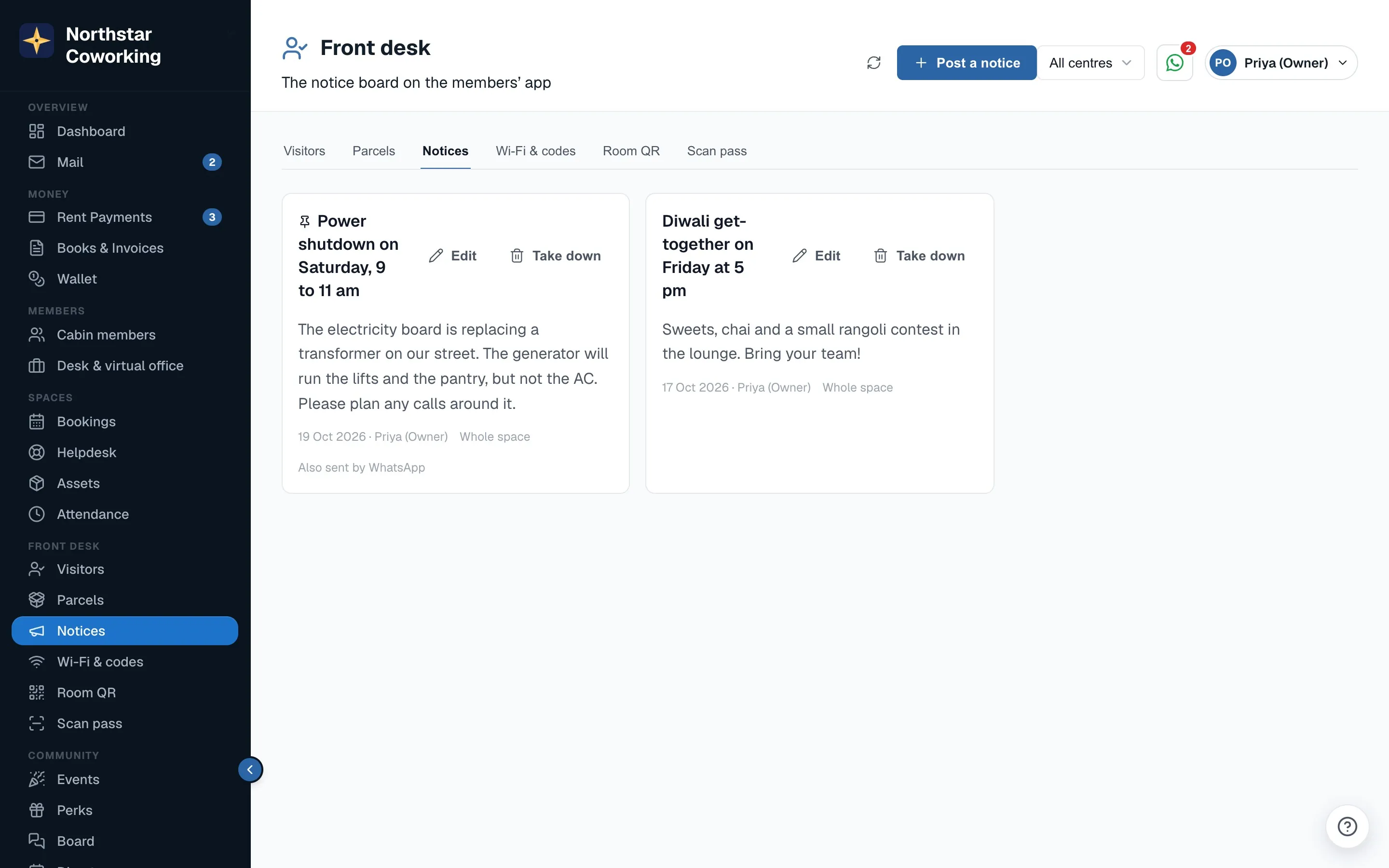
- Press Post a notice.
- Write a title and the text. Keep the title short; it is what members see first.
- Choose who sees it: the whole space, or only the centres you tick. A notice about one building should go to that building only.
- Add a picture if it helps, for example the new timings or a photo of the lost keys.
- Tick Pin to keep it at the top of the board.
- Set Show until so the notice takes itself down after the date. A closure notice can expire the day after the closure.
- Post.
If the notice matters enough that members should see it without opening the app, tick Also send by email or Also send by WhatsApp before posting. This uses the same broadcast the app already uses for messages to members, so it goes only to the members the notice is aimed at. The notice board itself does not push a notification to phones; members see new notices when they next open the app.
To change a notice, open it and edit. To take it down early, remove it; it goes from every member's app at once.
Wi-Fi & codes
This tab has two halves.
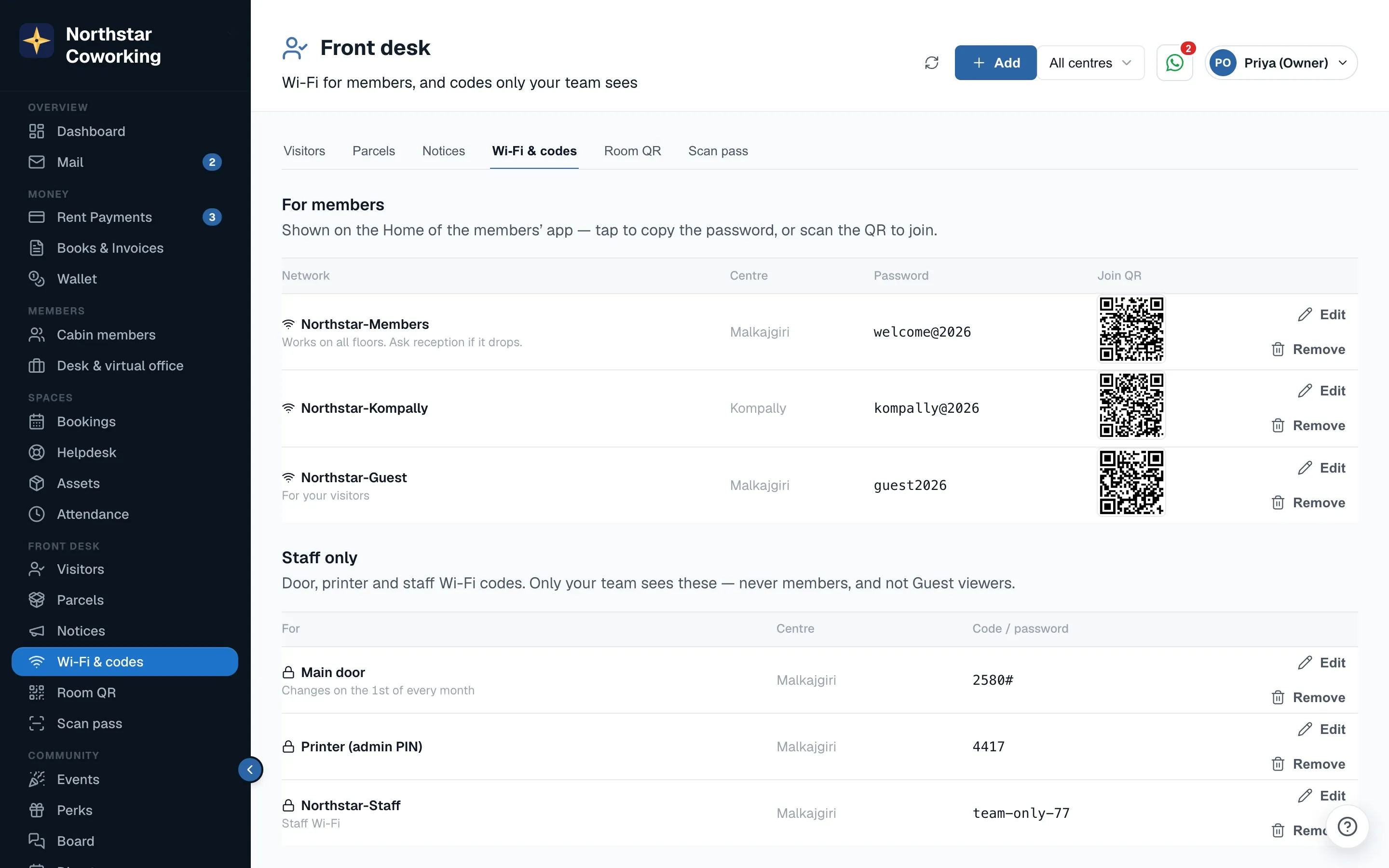
Member Wi-Fi is set once per centre: the network name and the password. Save it and two things happen. The app shows each member a Wi-Fi card for their centre, where they can show or copy the password and scan a join QR to connect without typing. And the tab shows the same join QR for you to print and keep at reception or in the meeting rooms, so a guest can connect by scanning.
- Pick the centre.
- Enter the network name and the password exactly as on the router.
- Save. The card appears in members' apps for that centre.
- Press the QR to open it large, and print it if you want a copy on the wall.
When you change the Wi-Fi password, change it here on the same day. Members' apps show the new one straight away and you avoid a morning of questions at the desk.
Staff-only Wi-Fi and codes is the second half, for things members should not see: the staff network, the door code, the printer PIN, the alarm code. Add each one with a name and the value. These are visible to Super Admins, Admin viewers and Staff only; guest viewers never see them, and members never see them.
Good to know
- Notices and Wi-Fi are per centre when you want them to be. A space with one building can ignore the centre picker.
- Guest viewers do not see the Front desk page at all, so they can neither post notices nor read the staff-only codes.
- Members' view of notices and the Wi-Fi card is described in Guests, parcels, notices and Wi-Fi in the member app.
- For visitors and parcels see Visitors and parcels at the front desk.
Related guides
Still stuck? WhatsApp us or write to info@coworkingos.in. Tell us the member or screen and we'll sort it with you.